
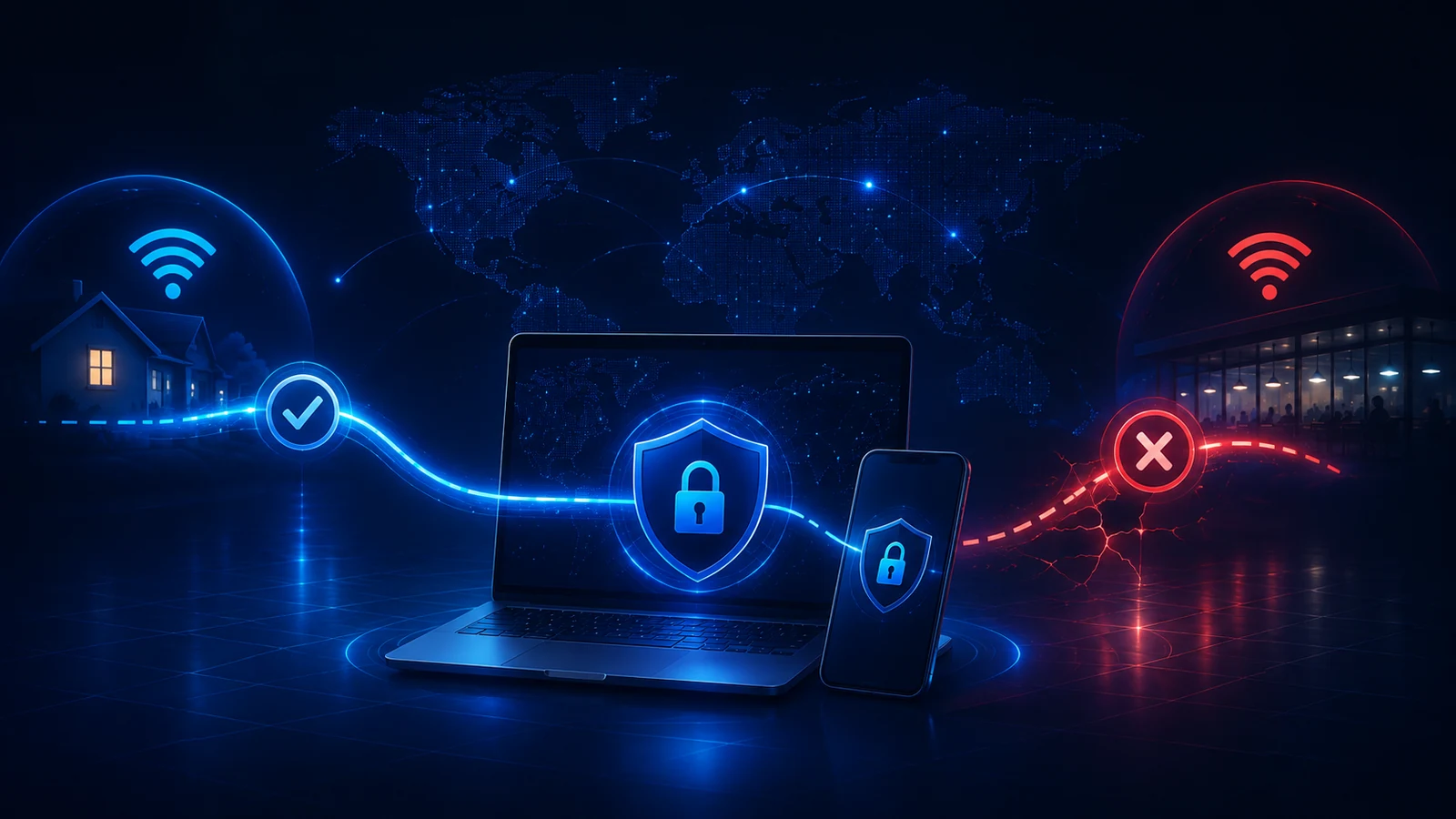
You connect without a second thought at home, then try the same thing on hotel Wi-Fi, a café network, or the office, and it behaves differently. The different network is a useful starting point for investigation. It does not prove that the device, client or profile is fault-free: the same setup can interact differently with each network.
This article explains the ordinary reasons a profile can work in one place and behave differently in another, and gives you a calm way to work out where the difference actually lives. It stays deliberately high-level: the goal is understanding what's happening and who to ask, not working around anyone's network rules.
Start with a controlled comparison
- Keep the same device, client and assigned profile.
- Confirm basic internet access on the failing network, completing its legitimate sign-in page if needed and permitted by your device or network policy.
- Record the exact point of failure: import, connecting, authentication, disconnect or browsing after connection.
- Try the same setup on another network you are allowed to use.
- Compare the result and timestamp before changing another variable.
The same profile can encounter different conditions on different networks. A network-specific failure makes internet access, DNS, routing and firewall policy useful checks, but it does not prove that the profile or device is fault-free. Use a controlled comparison before changing the configuration.
The sections below describe network-side factors worth checking and observations that can help tell them apart.
Captive portals and network sign-in steps
Many public and hotel networks put a sign-in page in front of internet access — the page that asks you to accept terms, enter a room number, or log in before anything else works. Until you've completed that step, a connection may not behave as expected, simply because the network hasn't granted general access yet. An unfinished sign-in is one possible explanation for a profile that works at home but not on this network.
The practical move is to make sure you've finished the network's own sign-in in a browser first, and then try connecting. VPN on Hotel Wi-Fi: Captive Portals, Network Rules, and Setup Expectations covers this pattern in more depth, and Airport, Café, and Co-Working Wi-Fi sets expectations for public networks generally.
Network-specific restrictions
Some networks apply their own rules to the kinds of connections they allow — workplaces, schools, public venues, and guest networks often do. Those rules can contribute to a connection behaving differently, although the symptom alone does not establish which rule or other factor is responsible. The network operator decides which connections are permitted.
Where a network you don't control limits a connection, the appropriate step is to follow that network's rules and, if you need access there, to raise it with whoever runs the network — not to look for a way around the restriction. On a managed or workplace network, that means the people who administer it.
DNS can differ from network to network
Networks can supply different DNS settings. If a profile uses a server hostname, DNS may be needed before the VPN can connect; resolving website names after connection is a separate stage. Record whether the failure is resolving the VPN server or opening a destination after connection, rather than treating every DNS symptom as the same problem. This overlaps with why two of your own devices can differ; the companion article Why VPN and DNS Results Can Differ Between Devices walks through the DNS side in detail.
Firewall or router behavior, at a high level
At a high level, the router and network equipment on any given network decide how connections are handled, and a network's firewall rules can treat certain connections differently from another network's. You don't need to know the specifics to understand the effect: equipment and firewall rules can affect how the same profile behaves on different networks. The comparison alone does not identify a specific rule or exclude another contributing factor. This is descriptive, not something to reconfigure — network equipment belongs to whoever owns the network, and changing it isn't a step you should take on a network that isn't yours.
Switching between Wi-Fi and mobile data
Wi-Fi and mobile data are different networks, so moving between them can change behavior too. A different result on cellular and Wi-Fi is a clue to compare the networks; it does not rule out a device, client or profile interaction. Keep the device and profile fixed and record the stage at which the connection fails before drawing a conclusion. Switching networks can also mean a connection needs to re-establish on the new one; VPN After Sleep, Roaming, and Network Switches explains what reconnection looks like when the network changes underneath you.
Does the issue follow the device, the profile, or the network?
The most useful question to answer is which of three things the difference is tied to. A quick way to narrow it down:
- If it happens on one network but not others with the same device and profile, investigate the network conditions and how this setup interacts with them.
- If it happens across networks but only on one device, start by checking that device, its client and its settings.
- If it happens with one profile across networks and devices but not another profile, the profile is worth a closer look — starting with whether it's current.
Changing one thing at a time helps separate the result you observed from its possible causes.
A calm diagnostic sequence
Putting it together, a measured order to work through:
- Finish the network's own sign-in page in a browser, if there is one, then try again.
- If your device and network policy allow it, note whether internet access works without the VPN. An always-on VPN policy may intentionally prevent that comparison; an unavailable non-VPN connection alone does not establish a network fault.
- Try another network you trust (for example, switch between Wi-Fi and mobile data) and see whether behavior changes.
- Confirm you're using a current profile from your own source, so an old file isn't part of the picture.
- If a specific network consistently behaves differently and it's one you don't control, follow that network's rules and ask whoever runs it; if it's a managed or workplace network, that's the network's administrators.
If the difference persists on a network you'd expect to work, that's the point to raise it with whoever provides your access or with Lisar support, rather than changing settings on equipment that isn't yours. For a broader step-by-step, the VPN Troubleshooting Checklist covers connection, DNS, device, and network checks in order.
Quick recap
- The same profile can behave differently across networks; compare conditions without ruling out device, client or profile interactions.
- An unfinished captive-portal sign-in is one possible reason access differs.
- Network restrictions, DNS, routing and firewall rules are useful checks; record the failure stage before assigning a cause.
- Wi-Fi and mobile data are different networks, so switching between them can change behavior.
- Work out whether the difference follows the device, the profile, or the network by changing one thing at a time.
- On a network you don't control, follow its rules and ask whoever runs it rather than working around a restriction.
Frequently asked questions
Why does my VPN connect at home but not on public Wi-Fi? Possible causes include an unfinished network sign-in, limited internet access or network restrictions. Complete any required network sign-in, then retry. Check internet access without the VPN only if your device and network policy permit it. A different result can guide the investigation, but it does not by itself exclude a device, client or profile interaction.
How do I tell if it's my profile or the network? Change one thing at a time. If the same device and profile work on other networks, compare the network conditions and how the setup interacts with them. If one device struggles on all networks, look at the device. If one profile behaves differently across networks and devices, check that the profile is current. Those observations narrow the investigation; they do not, on their own, prove the cause.
Should I change router or firewall settings to make it work? Not on a network you don't own. Router and firewall rules belong to whoever runs the network, and changing them isn't a step to take on someone else's network. If you need access on a managed or public network, follow its rules and ask the people who administer it.
Does switching between Wi-Fi and mobile data matter? Yes — they're different networks, so behavior can differ between them, and a connection may need to re-establish when you switch. If cellular behaves differently from a particular Wi-Fi network, that is a clue to compare the networks; it does not rule out a device or profile interaction.
Will changing my profile or location fix a network that blocks it? Not reliably, and that's not the intent here. If a network restriction is confirmed, follow that network's rules and ask whoever runs it. Changing a profile is not a reliable way to diagnose the restriction or establish whether access is permitted.