
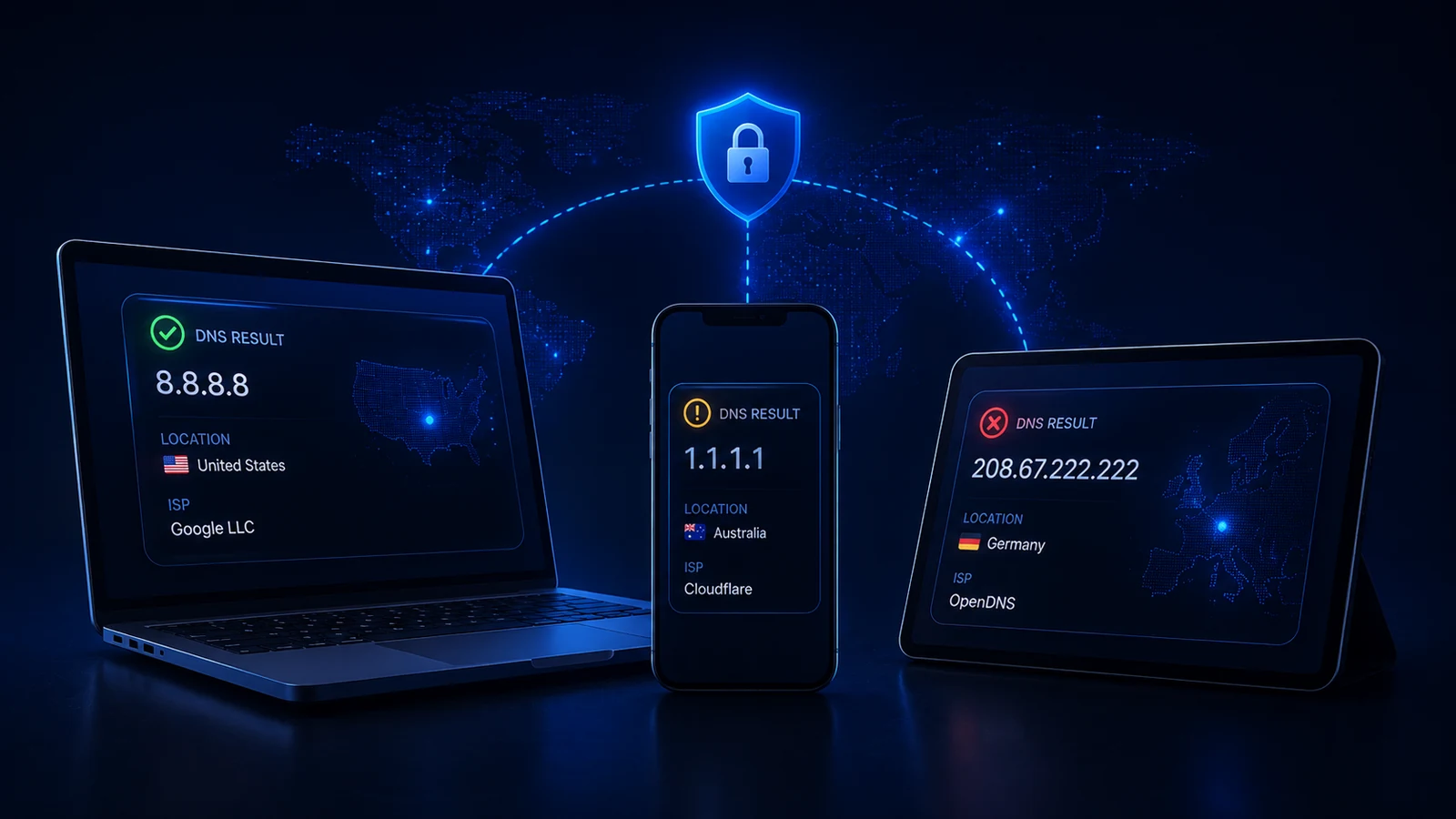
A laptop and a phone can show different DNS-related results while both VPN clients report a connection. That difference is a starting observation, not a diagnosis. It can come from different settings or cached answers, and it can also reveal a lookup failure or an unexpected policy effect. The useful next step is to identify exactly what differs.
First, identify the result you are comparing
A DNS answer for a hostname, the resolver provider named by a test, and the public IP seen by a website are different observations. Record which one you checked. A resolver label by itself does not prove that the VPN is disconnected, that traffic bypassed the tunnel, or that all traffic is protected.
DNS over HTTPS (DoH) carries DNS queries and answers over HTTPS. Choosing a resolver and determining the network route used to reach it are separate questions. To compare an answer, use the same hostname and, if the tool exposes it, the same query type; a browser error message is not itself a record of the resolver's answer.
Check each device's connection and setup
Read the current client status on each device and note the network in use. A phone on cellular and a laptop on Wi-Fi have different starting conditions. A recent network switch or an incomplete reconnection can matter; see VPN After Sleep, Roaming, and Network Switches.
Also note the client and setup path. Lisar's documented options include L2TP/IPsec where compatible and appropriate, with OpenVPN as an alternative, including the documented OpenVPN Connect path on Android. A protocol or client name alone does not identify the cause of a DNS difference. What "Connected" Actually Means in a VPN Client and VPN Status vs Connection Status explain the limits of a status label.
Check that each device uses its own current authorized profile from your Lisar Panel. Do not copy someone else's profile or share credentials to make two tests match. If one profile may be out of date, record that fact and follow the relevant setup guide. How to Keep VPN Profile Files Organized helps keep current and older files distinct. When comparing ad filtering, check each profile's DNS AdBlock availability as well.
DNS caching is one possible explanation
Different devices, browsers or resolvers can retain answers from different times. This can explain a difference after a change, but it does not guarantee that waiting will make the results match: the devices may still be using different resolvers or policies. Record when the change was applied and when each result was observed. The separate DNS caching guide explains cache timing.
Read device DNS settings and browser mode separately
A device's DNS settings and a browser's Secure DNS feature can influence which resolver is used. They still operate within the device's actual networking and policy conditions. Do not infer the route taken by the DNS connection simply from the selected provider name.
For Firefox, read both the protection level and the displayed DoH status. Mozilla documents that Default Protection can disable DoH when a VPN or certain network or management signals are present; increased and maximum protection have different behavior. A selected setting is therefore not enough to establish that DoH is active. Check Mozilla's current DoH guidance for the mode you are using.
For Chrome on a computer, Google's guidance distinguishes automatic Secure DNS from a selected custom provider: automatic mode can fall back to an unencrypted lookup when resolution has problems, while a custom provider does not default to that fallback. Managed devices and parental controls can also affect availability. Record the mode and any error, and consult Chrome's current Secure DNS guidance for your platform.
These differences are reasons to read and compare settings, not a blanket instruction to disable Secure DNS or override an organization's controls. Keep managed settings in place and ask the administrator when their effect is unclear. The VPN DNS settings checklist covers the wider set of layers to inspect.
Make a comparison that support can use
- Record the hostname, exact symptom or type of result, and time of the observation.
- Note each device's network, VPN client status, client version and current authorized profile.
- Record the browser/version, Secure DNS mode, provider setting and active status if available.
- Repeat the same observation under comparable conditions where practical. Note remaining differences; do not change several settings at once.
- Share a concise, sanitized description with Lisar support or your administrator. Keep passwords, profile files, tokens and private browsing history out of public reports.
You can ask for help as soon as lookups fail, a security concern arises or policy behavior is unexpected. Matching every condition is not a prerequisite for support. The aim of the comparison is to make the observation clearer, not to prove in advance that a particular component is at fault.
Frequently asked questions
Why do my laptop and phone show different results on the same VPN? They may use different networks, connection profiles, caches, DNS resolvers or browser settings. First identify whether the difference is a DNS answer, a resolver label or a public IP. Those observations describe different parts of the connection and cannot establish the cause on their own.
One device seems to reflect a change and the other does not. Why? A cached answer is one possible reason, but a different resolver or a change that was not applied can also explain it. Record the time, hostname, browser and result. Waiting alone does not establish that the settings are correct or that the results will converge.
Does a difference between devices mean something is broken? Not by itself, and it does not prove that everything is working either. Failed lookups, security concerns or unexpected policy behavior are valid reasons to ask support for help. You do not need to make both devices identical before reporting a problem.
How do I compare two devices properly? Compare the same hostname and type of result, record the time and network, and read each client status and browser DNS mode. Note differences instead of changing several settings at once. Each device should use its own current authorized profile; do not share a profile or credentials just to match the test.
Could my device or browser DNS settings be the reason? Yes. Device DNS settings and browser Secure DNS can affect the resolver used, subject to the browser mode, active status and network policy. A different resolver label alone does not show whether traffic crossed the VPN tunnel. Read the settings and provider guidance before making changes.