All devices and connection methods
Choose another platform or compare the available setup routes.
 Open panel
Connect a Mac through a compatible built-in L2TP/IPsec configuration or a standard OpenVPN client. The setup depends on your profile and macOS version.
Open the Lisar panel and select an active profile. The connection details belong to that profile: use its server, VPN account and IPsec values for L2TP/IPsec, or its downloaded .ovpn file for OpenVPN. A website sign-in password is not automatically a VPN password.
Start with L2TP/IPsec when your device and network support a suitable connection. OpenVPN is the alternative when they do not. An operating system listing another protocol does not mean that your Lisar profile supports it.
Older macOS releases organize these controls differently. If the exact connection type is absent, or the network does not support a suitable L2TP/IPsec connection, use OpenVPN below.
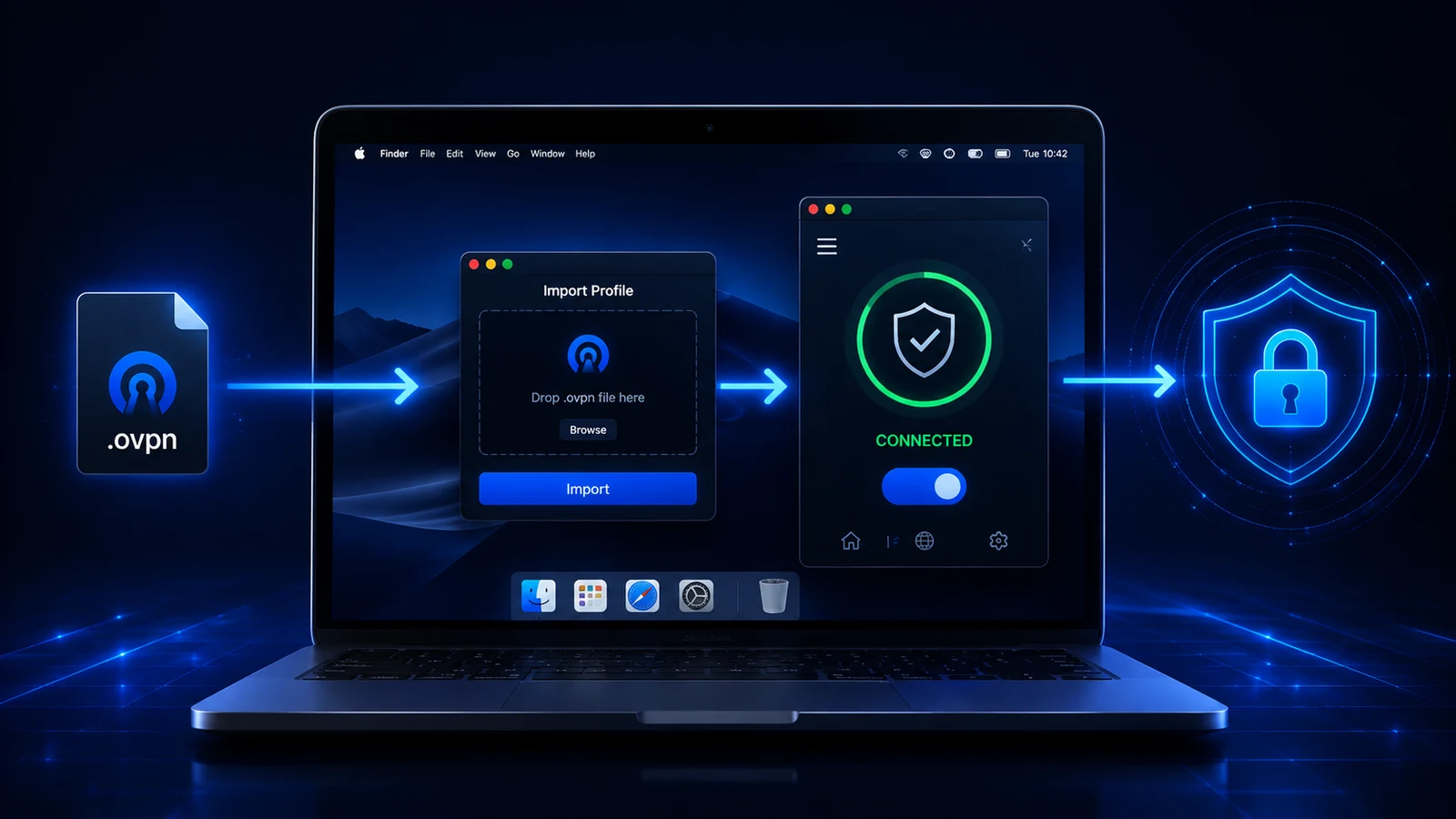
If L2TP/IPsec is unavailable or unsuitable, install OpenVPN Connect for macOS from the official download or store link. Choose the installer for your operating system and processor where offered.
.ovpn file from the Lisar panel.Keep the original profile file private. If the client asks for a value that the panel does not provide, contact support with the field name and error message. Do not remove certificate checks or copy connection values from another provider.
If the VPN connects but Safari or another browser reports an unexpected exit address, review any browser proxy, separate relay or split-routing setting. A working VPN route and a browser's additional network service are different layers.
If a printer or local file share becomes unavailable, compare local-network routing with the VPN profile and ask support before changing route rules. The browser guide explains checks for Safari, Chrome, Firefox, Edge and Brave.
A saved configuration is not a connected tunnel. Confirm that your VPN client or system settings shows Connected, then open a website. After changing Wi-Fi, waking the device or switching to mobile data, check the status again.
If authentication fails, check the active profile and its connection values. If the VPN connects but browsing fails, check DNS and routing before changing the profile. If only one browser fails, review its proxy, secure DNS and other VPN extensions. Use the troubleshooting checklist for the next checks.
For support, provide your operating system, client version, protocol and a redacted error message. Do not send passwords, shared secrets, private keys or a complete profile in a public message.
Tunnelblick is an independently maintained OpenVPN client for macOS. Check its current system requirements before installing it.
With Tunnelblick running, drag the Lisar .ovpn file onto its menu-bar icon. Choose whether the configuration is for your user or all users and authorize installation when macOS asks. Then select the configuration from Tunnelblick and connect. The official configuration instructions explain this flow. Use the supplied profile and check the connection status; another client's ability to import a file does not prove an active tunnel.
Choose another platform or compare the available setup routes.
Check VPN client support before routing a household connection.
Get help with a profile or a device-specific setup problem.