
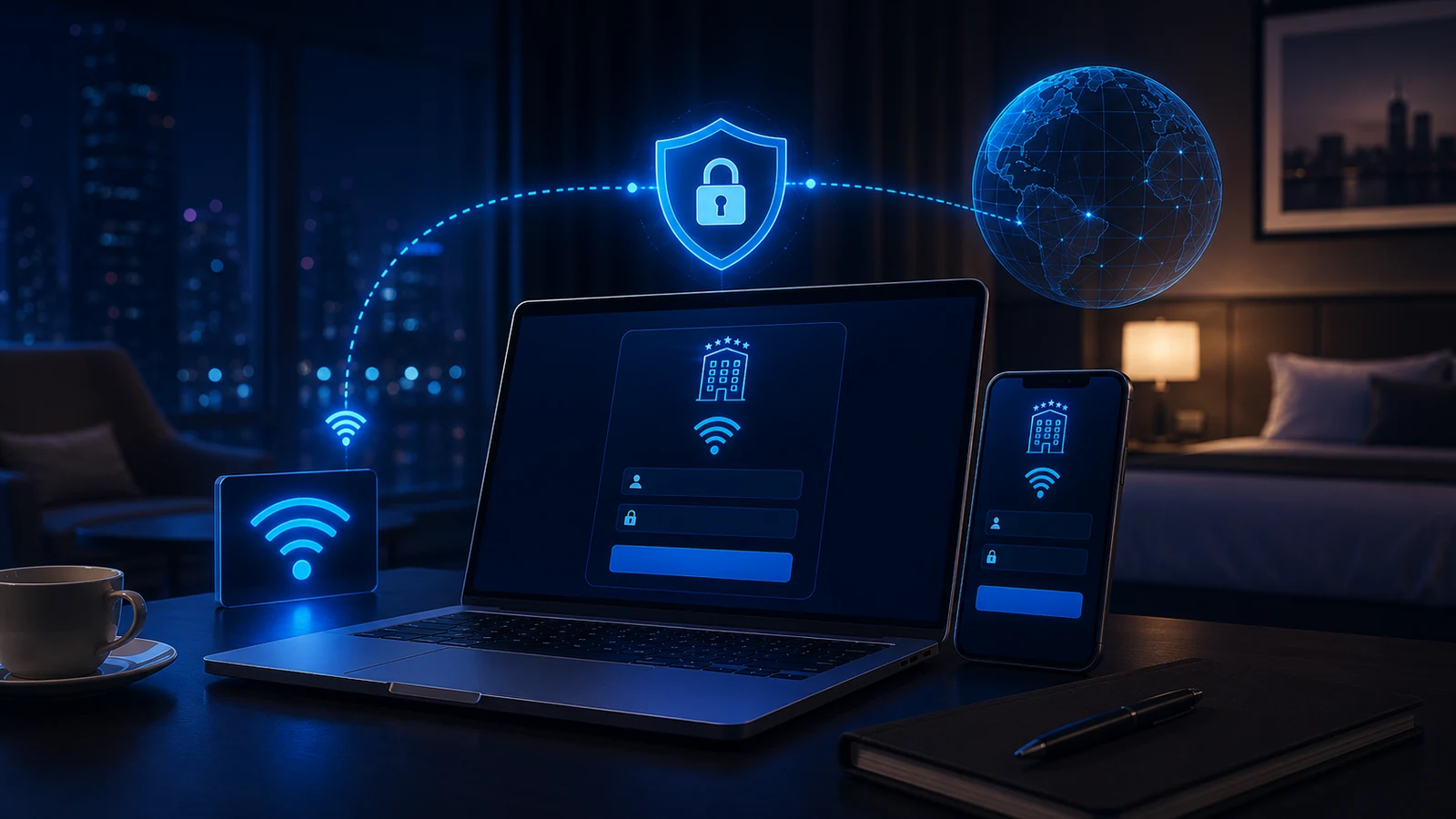
Hotel Wi-Fi can involve three separate steps: joining the wireless network, completing the venue's sign-in, and establishing a VPN connection. A Wi-Fi icon alone does not show that all three have succeeded. Start with the first incomplete step rather than assuming the profile is broken or the hotel is at fault.
This guide focuses on hotel sign-in and connection checks. Use the setup guides for the client you actually use, and keep the device owner's network requirements in place.
Check Wi-Fi, venue sign-in, and VPN status separately
Confirm that the device, or the travel router providing its connection, has joined the intended guest network. If the hotel requires a captive portal, complete that access step through its normal instructions. Then read the VPN client's current connection status. A saved profile, an accepted hotel terms page, and an active VPN connection are different observations.
Keep the failed stage clear. A device that cannot join Wi-Fi needs a network-access check. An unfinished sign-in needs the venue's help. A VPN error after permitted network access needs the actual client message and selected setup checked. None of those observations alone proves a specific cause.
If the hotel sign-in page does not appear
Verify the hotel's official network name with staff and use the device's network sign-in prompt. On iPhone or iPad, Apple's captive Wi-Fi guide describes Settings > Wi-Fi, then the network's information button and Join Network. Being associated with that network does not necessarily mean internet access is available.
Automatic detection is not guaranteed. Mozilla's captive-portal guidance also explains that unexpected redirects can trigger a detection message. Confirm that a sign-in page belongs to the venue before entering information; a browser message is not proof of its identity. If the page is absent or unfamiliar, ask staff for the supported access address or next step. Do not bypass a certificate warning to reach it.
Keep required VPN policy in place
A browsing check must respect the device's active policy. For example, Android's VPN documentation describes a system option that blocks connections without VPN. Where that policy applies, a failed ordinary-browsing test does not by itself prove that hotel access is broken. Availability depends on the client and device; this is not a claim about a Lisar app feature.
On a managed device, ask the administrator for an approved sign-in or network-test path. Do not disable a required VPN or security control to make the portal load. If the approved path is unavailable, use a permitted alternative network.
Reconnect the saved setup before replacing it
Once venue access is ready, connect using your existing supported client and saved setup. Do not download or reimport a profile merely because you moved to a hotel. First-time setup and a provider-directed replacement are separate tasks; the setup guides cover those cases.
If the client still cannot connect, record its current status and error. A comparison on another permitted network can help narrow the conditions, but one successful comparison does not prove that every account, client, profile, or network setting is correct.
Guest-network rules and changing conditions
Hotels set their own access rules, and a setup that works elsewhere is not guaranteed to work on every guest network. Ask staff about access requirements or limits instead of changing router, firewall, or VPN settings by guesswork. Keep a permitted fallback, such as mobile data, available for time-sensitive work.
If sign-in appears again after sleep or reconnection, check the current venue-access state and then the client state. A returning page can indicate that access needs renewing; it is not a complete diagnosis of why a connection dropped. Follow the venue's instructions rather than assuming the profile must be replaced.
Prepare before travel and record a useful failure report
Test your intended client and account setup on a familiar network before departure. During a failure, note the device or router model, operating system, client version, failed stage, time, and redacted error text. Keep passwords, room details, and profile files out of public posts. Ask venue staff about network access and your administrator or service support about the relevant connection stage.
The hotel Wi-Fi routine
- Confirm the official guest network and the device's connection to it.
- Complete any required venue sign-in through the permitted workflow; seek help if the page is missing or unexpected.
- Check network access only as device policy permits, then read the VPN client's current status.
- Reconnect the saved setup; avoid unnecessary profile replacement or several simultaneous changes.
- Record the incomplete stage and use a permitted fallback when needed.
Frequently asked questions
Is hotel Wi-Fi, its sign-in page, or my VPN connection failing?
Check each stage separately: joining the intended Wi-Fi, completing any required venue sign-in, and establishing the VPN connection. Record the first incomplete stage and current error. Ordinary browsing is only a useful comparison when device policy permits it; these checks narrow the question without proving a cause.
Do I have to accept the hotel's terms page before using my VPN?
If the venue requires sign-in for internet access, complete it through the permitted workflow. Follow the venue and device-owner instructions. Do not disable a required VPN policy to force access.
What if the hotel sign-in page does not open?
Use the device network sign-in prompt and confirm the official network with hotel staff. On iPhone or iPad, the network information screen offers Join Network. Ask staff or the device administrator for the supported path if it still fails; do not bypass a certificate warning.
Why does the sign-in page keep coming back?
Access may need renewing after a session change, but a repeated prompt is not a complete diagnosis. Check the venue-access state and VPN client status separately, and ask staff about the current access requirement.
Do I need to import my VPN profile again at each hotel?
A change of venue alone is not a reason to replace a saved profile. Check network access and the current client error first. Reimport only when the supported setup or service instructions call for it.
Will my VPN work on every hotel network?
No network is guaranteed to support every setup, and guest networks vary in rules and configuration. Test before travel and keep a permitted fallback such as mobile data ready.
Is hotel Wi-Fi safe to use for work if I have a VPN?
A VPN does not make every guest network or website safe. Keep devices updated, follow your organization's requirements, and confirm the connection state. Use only the work-access path your administrator permits.
Related guidance: Airport, Café, and Co-Working Wi-Fi: One Set of VPN Expectations and VPN Works on One Network but Not Another: What to Check.