
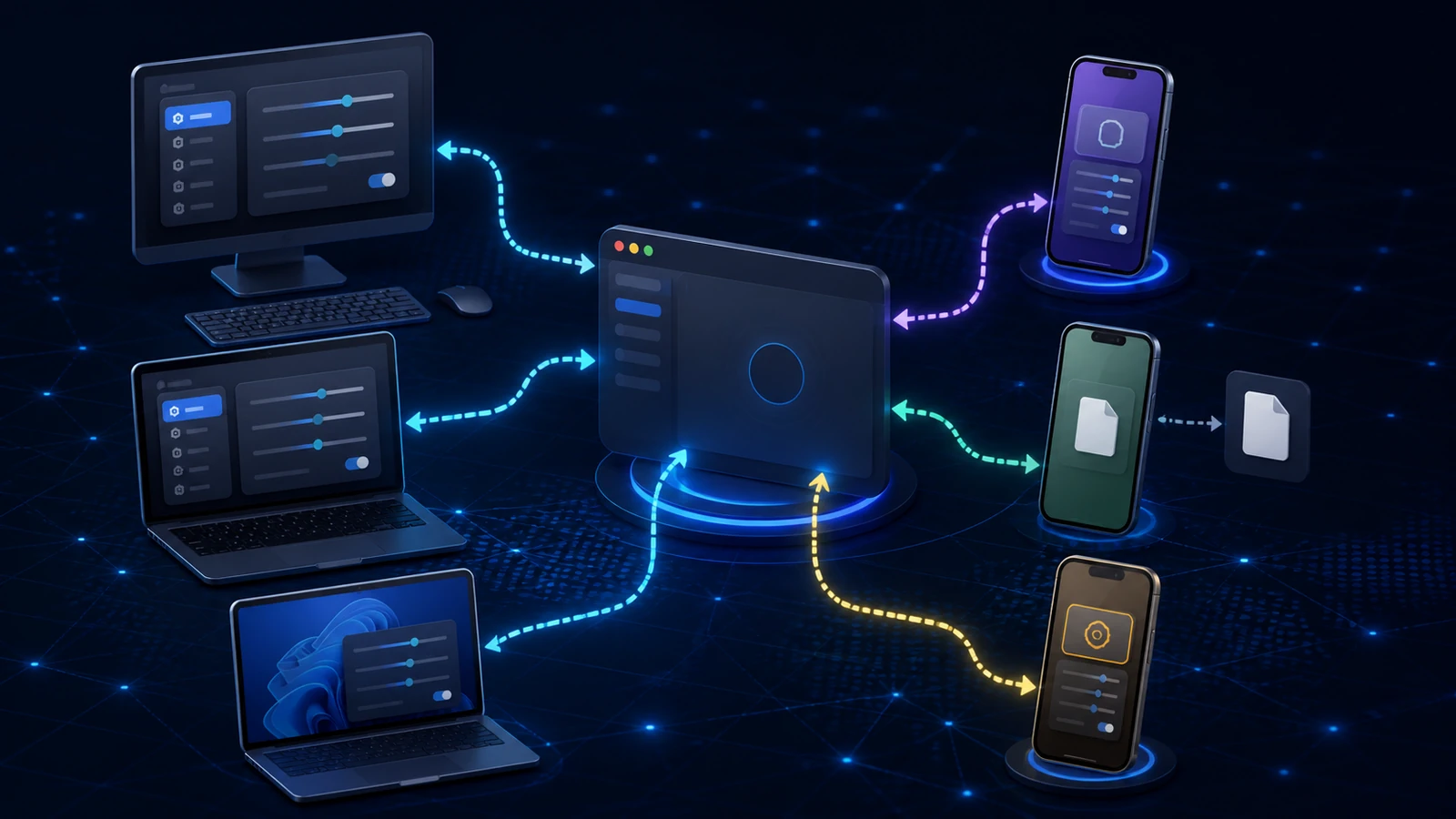
Follow a VPN setup guide on one device and the path can look very different on another operating system. Some differences come from how the system presents settings, files, permissions, and client interfaces; others come from the compatible protocol and client path itself. That variation is expected, not a sign that one universal flow is being displayed incorrectly.
This article explains why the steps vary across Windows, macOS, iOS, and Android, so you can distinguish an operating-system presentation difference from a guide that covers a different protocol or client path.
Choose the compatible path before comparing screens
Start at Lisar's setup hub. A compatible platform may use L2TP/IPsec settings first, while OpenVPN through a compatible standard client is the alternative where L2TP/IPsec is unavailable, unsupported, or unsuitable. Android keeps a bounded OpenVPN emphasis because current L2TP/IPsec platform or client availability can limit that path. The protocol-choice explainer describes the two profile types at a high level.
After the compatible path is selected, the operating system still shapes the experience. A settings-based L2TP/IPsec path and a profile-file OpenVPN path are materially different, and each operating system has its own way of presenting settings, files, permissions, client interfaces, and background rules.
File handling differs
When the selected path uses an OpenVPN profile file, desktop systems like Windows and macOS have visible, familiar file systems — you download the .ovpn file and it lands somewhere you can see. Mobile systems like iOS and Android handle files more implicitly, often routing a downloaded file to the client through a share or open-in step rather than a visible folder.
In that OpenVPN path, the "select the file" moment can therefore look different: a file picker on a laptop, a share sheet or an open-with choice on a phone. A settings-based L2TP/IPsec path does not use that profile-file import sequence.
Permissions differ
Each operating system presents VPN permissions in its own way and at its own moment. A compatible standard client may ask to add a VPN configuration, while a settings-based path is handled through the operating system's own controls. Mobile systems in particular tend to present a clear confirmation when a VPN profile or configuration is being added or first enabled.
None of this is an obstacle; it's the device confirming before it allows, and completing the prompt as directed is a normal part of setup. It does mean mobile setup often has an extra confirmation beat that desktop setup may present differently — expected, not exceptional.
Import screens differ
On an OpenVPN path, the screen where a profile enters the compatible client varies across operating systems and sometimes across client versions. The option might sit in a different place or appear as part of a different flow. This is why a screenshot in a generic guide can look unlike what's in front of you even when you selected the correct protocol and client path.
The reliable response is to follow the setup guide for your specific operating system and selected path rather than a generic one. For OpenVPN, focus on the import and save stages described by the guide; for L2TP/IPsec, follow the compatible platform's settings-based guide instead of looking for a file-import screen.
Background connectivity and mobile rules differ
After setup, systems differ in how they treat a running VPN connection — how it behaves when the device sleeps, switches networks, or moves between apps. Mobile operating systems have their own background-activity and connectivity rules, which can make a connection behave differently on a phone than on an always-on desktop.
This mostly matters for expectations: a mobile device moving between Wi-Fi and mobile data, or sleeping and waking, is a more dynamic environment than a desktop, and the operating system's own rules shape what happens. A compatible setup can therefore behave differently across those environments.
Mobile security prompts differ
Finally, mobile platforms layer in their own security confirmations — around adding profiles, granting permissions, and enabling connectivity. These prompts are the operating system protecting the user by asking before acting, and they're a feature of the platform, not a Lisar step.
Completing them as directed, following the platform's setup guide, is all that's needed. They're another reason mobile setup can have a few more confirmation moments than desktop — and another reason a cross-platform guide can't be one-size-fits-all.
The practical takeaway
When a guide's steps don't match your screen, first confirm that it covers the protocol, operating system, and compatible client path selected for that device. Use the matching Lisar setup guide, obtain any required profile material or values from the approved Lisar source, and follow the permission and configuration steps that the platform presents. Do not translate an OpenVPN import sequence into an L2TP/IPsec settings path, or assume one operating system's screens and capabilities apply to another.
Frequently asked questions
Why do VPN setup guides look different on my phone than on my laptop? Because the compatible protocol and client path can differ by device and operating system, and each operating system also handles settings, files, permissions, and background rules differently. Use the setup path and guide for your specific device.
Is mobile VPN setup harder than desktop? Not harder, just shaped differently — mobile systems tend to add clear permission and security confirmations when a profile is added or a connection is enabled. Those prompts are the platform asking before allowing; completing them as directed is normal setup.
The import screen doesn't match the screenshots. Am I doing it wrong? If your selected path uses OpenVPN import, the screen can vary by operating system and client version. Follow the guide for your actual device, operating system, and compatible client rather than matching images from another path.
Why does my VPN behave differently on my phone than my computer? Mobile operating systems have their own background-activity and connectivity rules, and phones switch networks and sleep more than desktops. A compatible setup can therefore behave differently across those environments.
Where do I get the right setup steps for my device? Start at the Lisar setup hub and use the guide that matches your device, operating system, protocol, and compatible client. Use only the profile material or values the approved source and selected guide require.
Related guidance: How to Confirm Your VPN Is Actually Connected: A First-Time Checklist and When to Re-Download Your VPN Profile (and When Not To).