
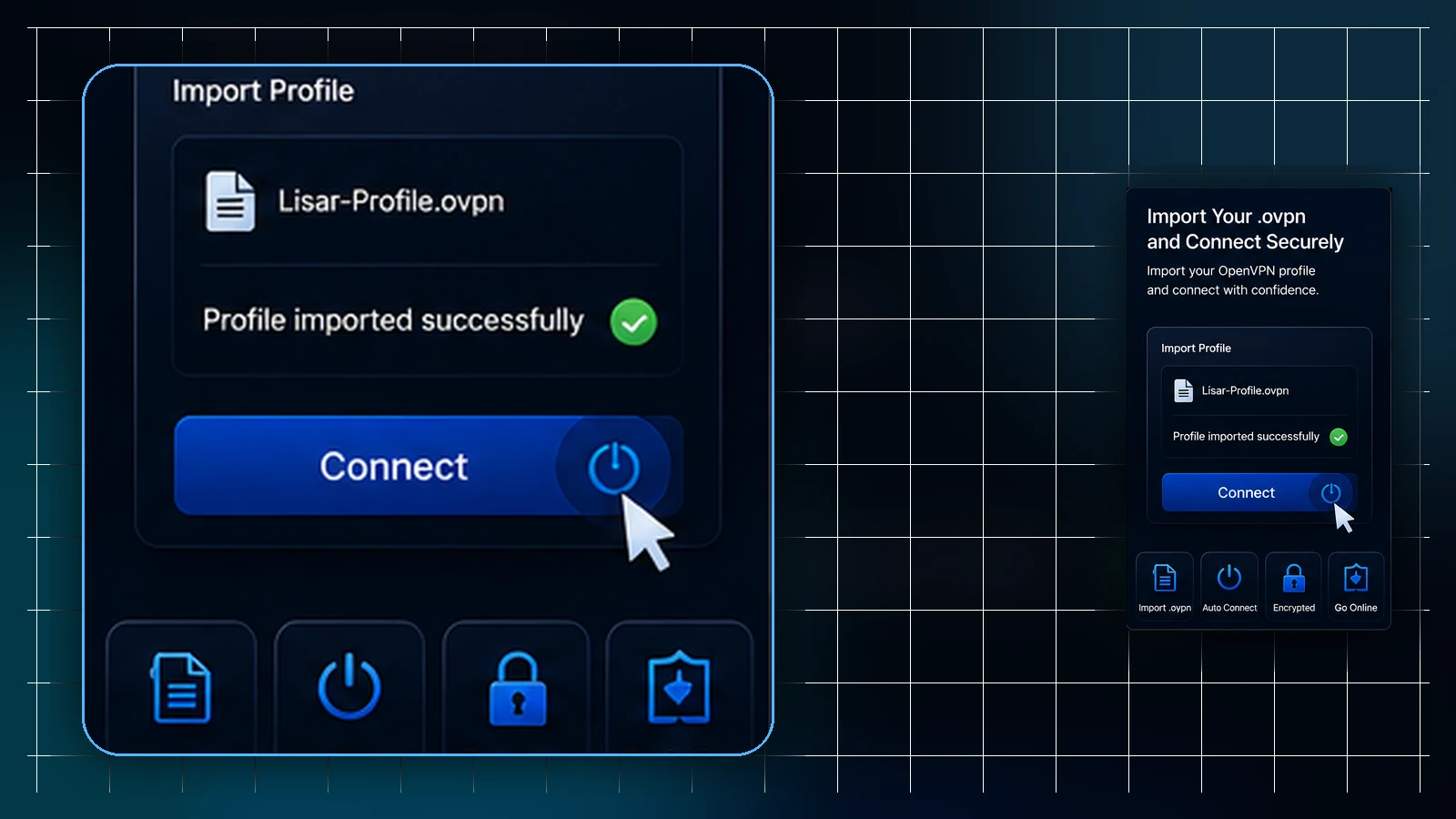
For Lisar manual OpenVPN setup, download your active profile's .ovpn file, open OpenVPN Connect, choose Upload File, import/save the profile and connect. The saved profile and the active connection are separate stages.
Before you begin
- Use a supported OpenVPN Connect installation for your device.
- Sign in to your own Lisar Panel and select the intended active profile.
- Download its current .ovpn file to a private location on the device.
- Confirm the device has internet access and permits the selected client.
This guide covers manual file import. Lisar Connect for Android, iPhone and iPad uses the signed-in profile directly. Linux and router clients have different menus; use their guide in Download and setup.
Import the file
- Open OpenVPN Connect and go to the profile-import screen. In current versions, this may be under the menu, My Profiles and the add icon.
- Select Upload File and locate your downloaded .ovpn file.
- Confirm the import and save the profile when prompted.
- Select the newly saved profile. Supply additional profile-specific information only if Lisar's instructions require it.
- Start the connection and approve the expected operating-system VPN permission.
- Check that the client reaches a connected state and remains connected during ordinary use.
Navigation varies by version. OpenVPN's official import guide documents the file-selection flow. A file import is not the same as uploading the profile to an unrelated website; keep the file within the trusted client and your private device storage.
If import fails
Check the selected filename and completed download. A saved login page, incomplete file or unsupported profile option can produce an import error. Record the exact message and client version. Do not rename an unrelated file to .ovpn or remove security directives to force acceptance. See common import problems.
If import succeeds but connection fails
A profile listed in the client has been saved; it has not necessarily authenticated or established a tunnel. Check the active profile and plan in Lisar, internet access, device clock and the exact connection-stage error. Follow the imported-but-not-connected guide.
After connecting
Use the client status to confirm the tunnel. If you need to check routing, test the expected path separately: one connected indicator does not prove that every application or destination uses the same route. Disconnect when finished.
The downloaded source file remains private setup material after import. Remove unneeded copies according to your device policy; do not forward the file or include it in support screenshots.
Frequently asked questions
Why does the app ask for more information after import?Requirements depend on the issued profile. Use only the values and instructions provided for your own Lisar profile.
Does a successful import mean the VPN is connected?No. Start the connection and check its status separately.
Can I use a URL-import method instead?Use Lisar's documented file-download workflow. Another provider's URL-import instructions do not establish a Lisar URL or supported method.
Is this the guide for the native Lisar Connect app for Android, iPhone and iPad?No. It is for importing a file into a separate OpenVPN client. Use the Android guide or iPhone and iPad guide for the native app.
Related guidance: When L2TP/IPsec Is Compatible and Appropriate for Lisar Setup and Common OpenVPN Connect Import Problems and How to Read Them.