
Set up Lisar on Windows with OpenVPN Connect
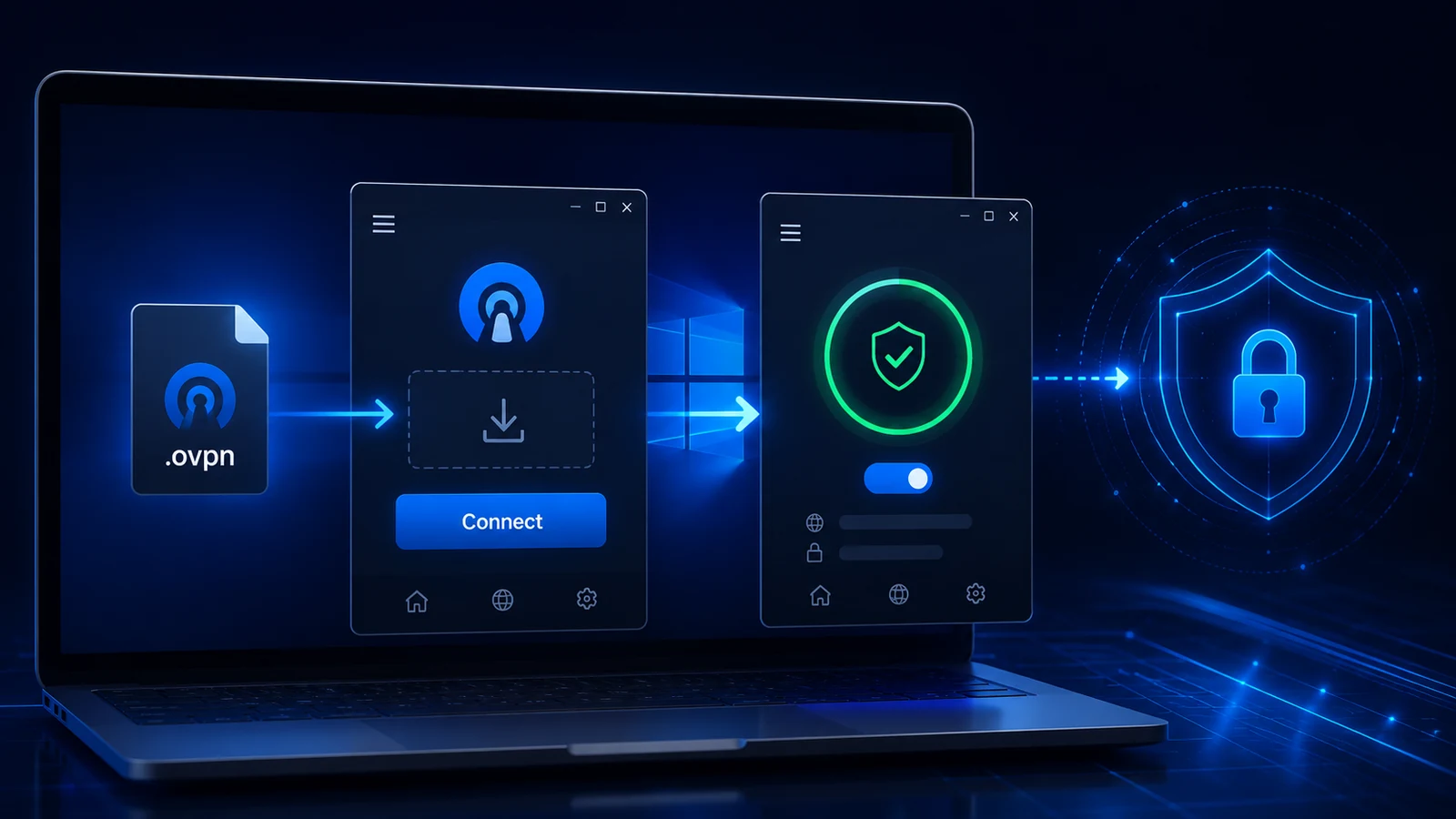
On Windows, download the .ovpn file, open OpenVPN Connect, choose Upload File, Import/Save profile, Connect, and confirm the connection.
Before you start: platform and client support
Screens and available options can vary by operating-system version, client version, device policy, and network rules. Use the documented path for your actual device and profile; compatibility is not universal.
Before setting up Lisar on Windows
Before you start, make sure your Lisar profile is active and that you can access the connection information in the Lisar panel. For Windows OpenVPN setup, download the .ovpn file for your profile.
Download the .ovpn file, then open OpenVPN Connect and choose Upload File.
Install OpenVPN Connect
Install OpenVPN Connect or another compatible OpenVPN client for this device. After installation, open the app and choose the option to add a profile from a file.
The user-facing Lisar setup path is based on downloading the profile file from the panel and uploading it in the OpenVPN client.
Download and upload your .ovpn file
Open the Lisar panel, select the active profile, and download the .ovpn file for that profile. Then open OpenVPN Connect and choose Upload File.
- Open Lisar Panel.
- Go to your active profile.
- Download the .ovpn file.
- Open OpenVPN Connect.
- Choose Upload File.
- Select the downloaded .ovpn file.
- Save/import the profile.
- Connect.
Select the downloaded .ovpn file, import or save the profile, and confirm that the imported profile matches the Lisar profile you intended to use.
Connect and confirm status
Start the connection from OpenVPN Connect and wait for the client to show an active connection state.
If any required fields or credentials are requested, use only the panel/profile/backend-supported flow. Do not guess server names, account values, private keys, or credentials.
Need help with this setup?
Contact Lisar for help with a compatible device, profile import, or supported network path.