
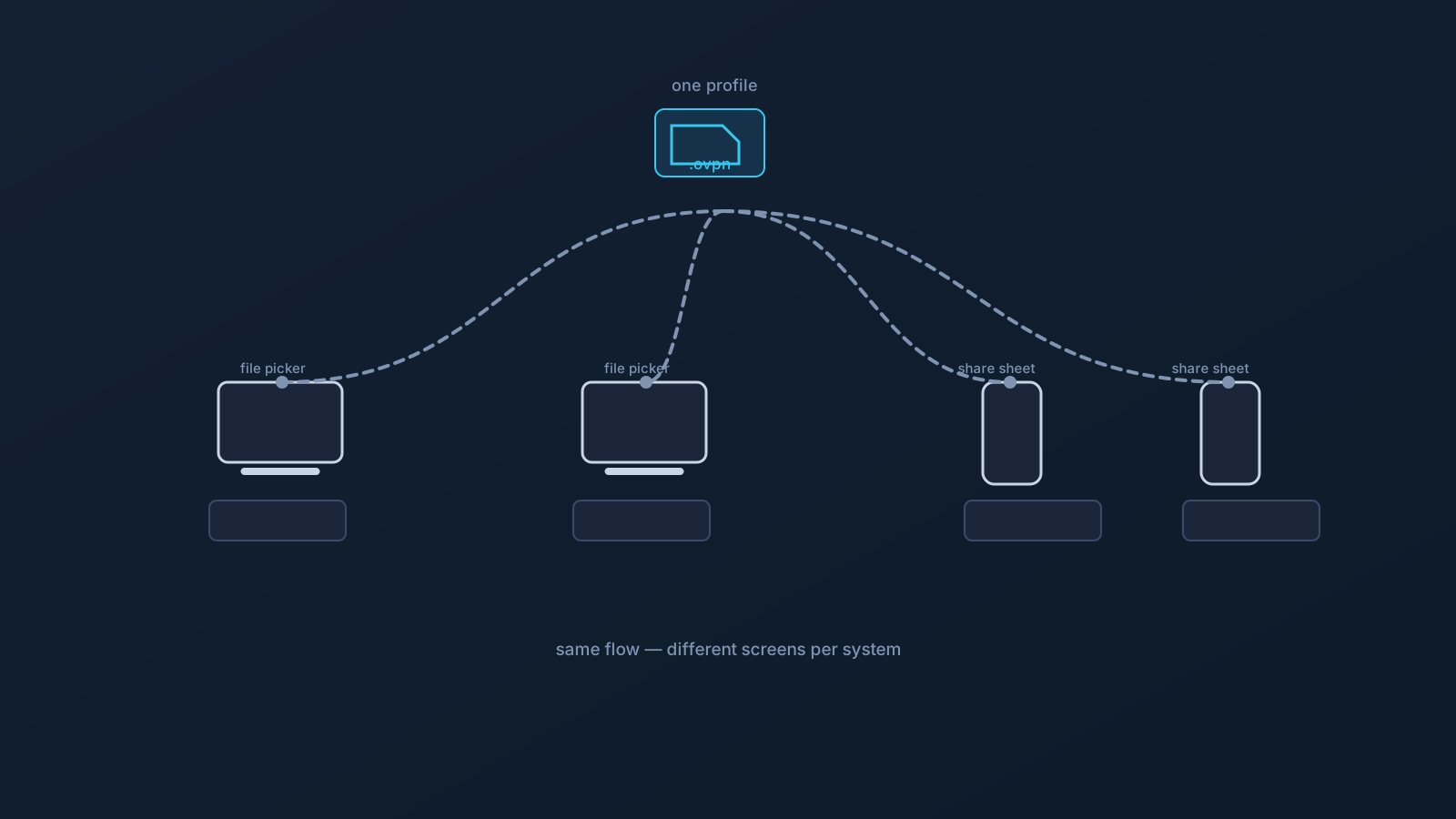
Follow a VPN setup guide on one device and it's effortless; follow the "same" setup on a different operating system and the screens look nothing alike. This trips people up constantly — and it shouldn't, because the underlying setup is the same everywhere. What differs is how each operating system presents it, and that difference is by design, not a sign anything is wrong.
This article explains why the steps vary across Windows, macOS, iOS, and Android, so a guide that doesn't quite match your screen becomes a minor translation rather than a roadblock.
The flow is the same; the screens are not
Underneath, Lisar's supported setup is identical on every platform: download the .ovpn file, open OpenVPN Connect, choose Upload File, import and save the profile, and connect. The file is the same kind of file, the client family is the same, and the sequence — get the profile, import it, connect — doesn't change.
What changes is the surroundings. Each operating system has its own way of handling files, its own permission prompts, its own screens for adding a VPN profile, and its own rules for apps running in the background. The client works within each platform's conventions, so the same logical step wears different clothes on different systems. Recognizing that the flow is constant even when the screens aren't is most of what keeps cross-device setup calm.
File handling differs
The first divergence is how you even get the profile file to the client. Desktop systems like Windows and macOS have visible, familiar file systems — you download the .ovpn file and it lands somewhere you can see. Mobile systems like iOS and Android handle files more implicitly, often routing a downloaded file to the client through a share or open-in step rather than a visible folder.
So the "select the file" moment looks different: a file picker on a laptop, a share sheet or an open-with choice on a phone. Same goal — hand the client the profile — different mechanics for doing it.
Permissions differ
Every operating system treats "an app wants to set up a VPN" as something to ask permission for, but each asks in its own way and at its own moment. Mobile systems in particular tend to present a clear prompt when a VPN profile is being added or a connection is first enabled — a deliberate confirmation step before allowing it.
None of this is an obstacle; it's the device confirming before it allows, and completing the prompt as directed is a normal part of setup. It does mean mobile setup often has an extra confirmation beat that desktop setup may present differently — expected, not exceptional.
Import screens differ
The screen where a profile actually enters the client varies too, both across operating systems and sometimes across client versions. The option might sit in a slightly different place, be labeled a little differently, or appear as part of a different flow. This is why a screenshot in a generic guide can look unlike what's in front of you even when you're doing exactly the right thing.
The reliable response is to follow the setup guide for your specific operating system rather than a generic one, and to focus on the goal of each step — import the profile, save it, connect — rather than expecting pixel-for-pixel matches.
Background connectivity and mobile rules differ
After setup, systems differ in how they treat a running VPN connection — how it behaves when the device sleeps, switches networks, or moves between apps. Mobile operating systems have their own background-activity and connectivity rules, which can make a connection behave differently on a phone than on an always-on desktop.
This mostly matters for expectations: a mobile device moving between Wi-Fi and mobile data, or sleeping and waking, is a more dynamic environment than a desktop, and the operating system's own rules shape what happens. It's normal for the same profile to feel a little different across those environments.
Mobile security prompts differ
Finally, mobile platforms layer in their own security confirmations — around adding profiles, granting permissions, and enabling connectivity. These prompts are the operating system protecting the user by asking before acting, and they're a feature of the platform, not a Lisar step.
Completing them as directed, following the platform's setup guide, is all that's needed. They're another reason mobile setup can have a few more confirmation moments than desktop — and another reason a cross-platform guide can't be one-size-fits-all.
The practical takeaway
When a guide's steps don't match your screen, you're almost never doing something wrong — you're on a different operating system, which handles the same flow its own way. Get your profile fresh from your own Lisar Panel, use the setup guide that matches your specific device and client, complete whatever permission and security prompts that platform presents, and aim for each step's goal rather than an identical-looking screen. The destination — profile imported, connected — is the same on all four; only the path there wears local clothing.
Frequently asked questions
Why do VPN setup guides look different on my phone than on my laptop? Because each operating system handles the same setup its own way — file handling, permission prompts, import screens, and background rules all differ. The underlying flow is identical; only the screens change, so use the guide for your specific device.
Is mobile VPN setup harder than desktop? Not harder, just shaped differently — mobile systems tend to add clear permission and security confirmations when a profile is added or a connection is enabled. Those prompts are the platform asking before allowing; completing them as directed is normal setup.
The import screen doesn't match the screenshots. Am I doing it wrong? Almost certainly not. Import screens vary by operating system and sometimes by client version. Follow the guide for your actual device and client, and focus on each step's goal — import, save, connect — rather than matching images exactly.
Why does my VPN behave differently on my phone than my computer? Mobile operating systems have their own background-activity and connectivity rules, and phones switch networks and sleep more than desktops. It's normal for the same profile to feel a little different across those environments.
Where do I get the right setup steps for my device? From the setup guide that matches your specific operating system and client, with your profile downloaded fresh from your own Lisar Panel. A guide matched to your platform beats a generic one every time.