
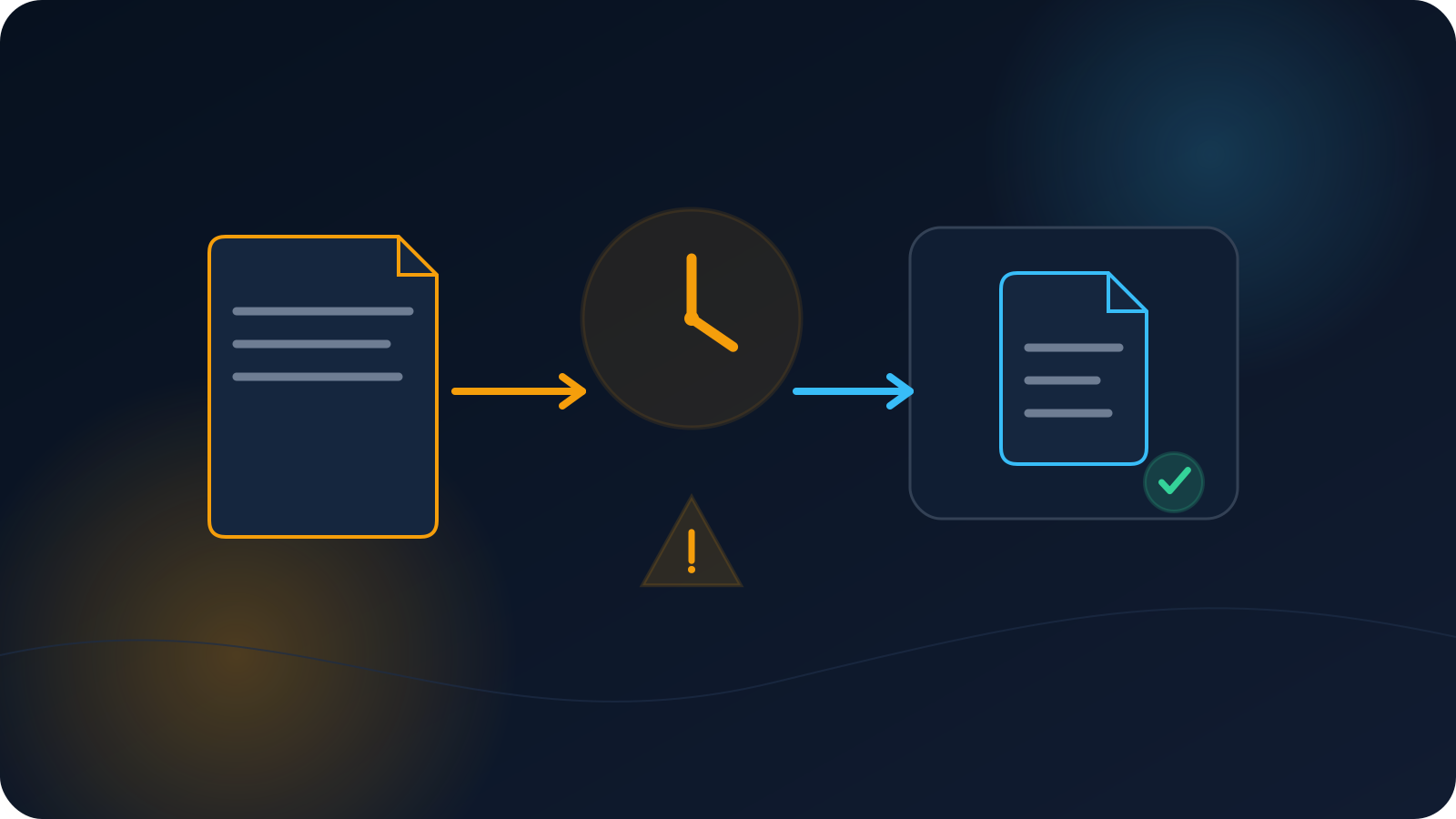
A VPN profile that connected fine yesterday can quietly stop connecting today, and the first instinct is often to assume something has gone badly wrong. Usually it hasn't. Most of the time a profile stops working for an ordinary, explainable reason — the kind that's resolved by getting a current file or checking one setting, not by anything drastic.
This article walks through the common, non-alarming reasons a profile can stop connecting, so you can recognize what's likely happening instead of guessing. It deliberately stays away from aggressive "fixes," because the right response is almost always calmer than that.
First, this is usually ordinary
It helps to start from the right expectation: a profile no longer connecting is a normal event with a small number of usual causes. Access details change over time, files go stale, and networks vary — none of which means anything is broken on your end. Reading the situation as routine keeps you from over-correcting, which is where people tend to create new problems for themselves.
With that framing in place, here are the reasons worth checking, roughly in the order they tend to come up.
The file you have may be an old copy
The most common cause is simply that the file you're importing is out of date. If server details or profile settings have been refreshed on the provider's side since you downloaded it, an older saved file can point at details that no longer apply — so it stops connecting even though nothing about you has changed. This is especially likely if you've had the same file sitting on your device for a while, or if you're not certain it's the newest copy.
The straightforward resolution is a current file from your own account rather than the one you've been holding onto. When to Re-Download Your VPN Profile covers exactly when refreshing is warranted, and keeping your files tidy in the first place — see How to Keep VPN Profile Files Organized — makes "is this the current one?" easy to answer.
The access behind the profile may have changed
A profile is a way of using access, and that access has its own lifecycle. If an access period has ended, been renewed, or otherwise changed status, the profile's behavior can change with it — a profile connecting is always subject to the state of the access behind it. This is ordinary account activity, not a fault in the file. VPN Profile Renewal and Status Changes explains how those status shifts relate to what you see.
In a team setting, access can also have been updated as part of normal changes — for example, when someone's role or arrangement changes. If your access is managed by someone else, that's a reason to check with them rather than to keep retrying the same file.
The server details may have changed
Sometimes the settings a profile relies on are updated on the provider's side. When that happens, a file you saved earlier may reference details that have since moved, and the older file stops connecting as a result. Again, this isn't a sign of a problem with your device — it's a normal reason a fresh profile from your account will behave differently from an old saved one.
You may be reaching for the wrong profile
If you have more than one profile — across devices, or more than one saved file — it's easy to import one that isn't the one you mean to use. What looks like "the profile stopped working" is sometimes "this is a different profile than I intended." A quick check that you're importing the file you actually mean to use rules this out, and it's another reason a clear naming and storage habit pays off.
Your current network may be limiting the connection
Where you are can matter as much as the file you're using. Some networks apply their own rules to the kinds of connections they allow, so a profile that connects on one network may behave differently on another — not because the profile changed, but because the network did. This is common on managed, public, or venue networks. If a profile connects in one place and not another, the network you're on is worth considering before the file itself. VPN on Hotel Wi-Fi and the VPN Troubleshooting Checklist both cover how network conditions show up.
Your sign-in details may have changed
If your setup involves credentials and those have changed — for instance, after you updated them — a profile that expects the previous details can stop connecting until it's used with the current ones. This is expected behavior, not a malfunction. When credentials are involved, making sure you're using your current ones is part of the picture.
A calm first step
Across almost all of these, the calm first step is the same: get a current profile from your own trusted source, and if your access is managed by someone else, check in with them about its status. That single move addresses the most common causes — an old file and changed details — without anything drastic. There's no need to tear down your setup or take irreversible action; a fresh file from your account, used with your current details, resolves most cases on its own.
If a current file still doesn't connect, the situation is worth raising with the people who provide your access or with Lisar support through the official channels, rather than repeating the same attempt. Knowing where those questions go turns a stall into a quick ask.
The short version
- A profile no longer connecting is usually ordinary, with a few common causes.
- The most frequent cause is an old saved file; a current one from your own account often resolves it.
- Access status can change (ended, renewed, updated); the profile follows the access behind it.
- Server details can be refreshed on the provider's side, making old files stop connecting.
- You may be importing a different profile than you intended, or the network you're on may limit the connection.
- Changed sign-in details can also be the cause; use your current ones.
- Calm first step: get a fresh file from your own source, check with whoever manages your access, and ask the right party if it still doesn't connect.
Frequently asked questions
My VPN profile stopped connecting — did I do something wrong? Almost certainly not. A profile that stops connecting usually has an ordinary cause, most often an old saved file or a change in the access or server details behind it. Getting a current file from your own account, used with your current sign-in details, resolves the most common cases.
Why would a file that worked before suddenly stop? Details the file relies on can be refreshed on the provider's side after you download it, so an older saved copy can stop matching. Your access status can also change over time. In both cases the file didn't break — it's just no longer current, and a fresh download reflects the updated details.
It connects on one network but not another. Why? Networks can apply their own rules to the connections they allow, so the same profile may behave differently in different places. If a profile connects at home but not on a public or managed network, the network you're on is the more likely factor than the file itself.
Should I tear everything down to fix it? No — start with the calmest step instead. Get a current profile from your own account and use it with your current details; that addresses the usual causes without anything drastic. If a fresh file still doesn't connect, ask whoever manages your access or Lisar support rather than taking irreversible action.
My access is managed by my team. What should I do? Check in with whoever manages it about the profile's status, since access can be renewed or updated as part of normal changes. Pair that with a fresh file from your own account if you have one, rather than repeatedly retrying an older saved copy.