
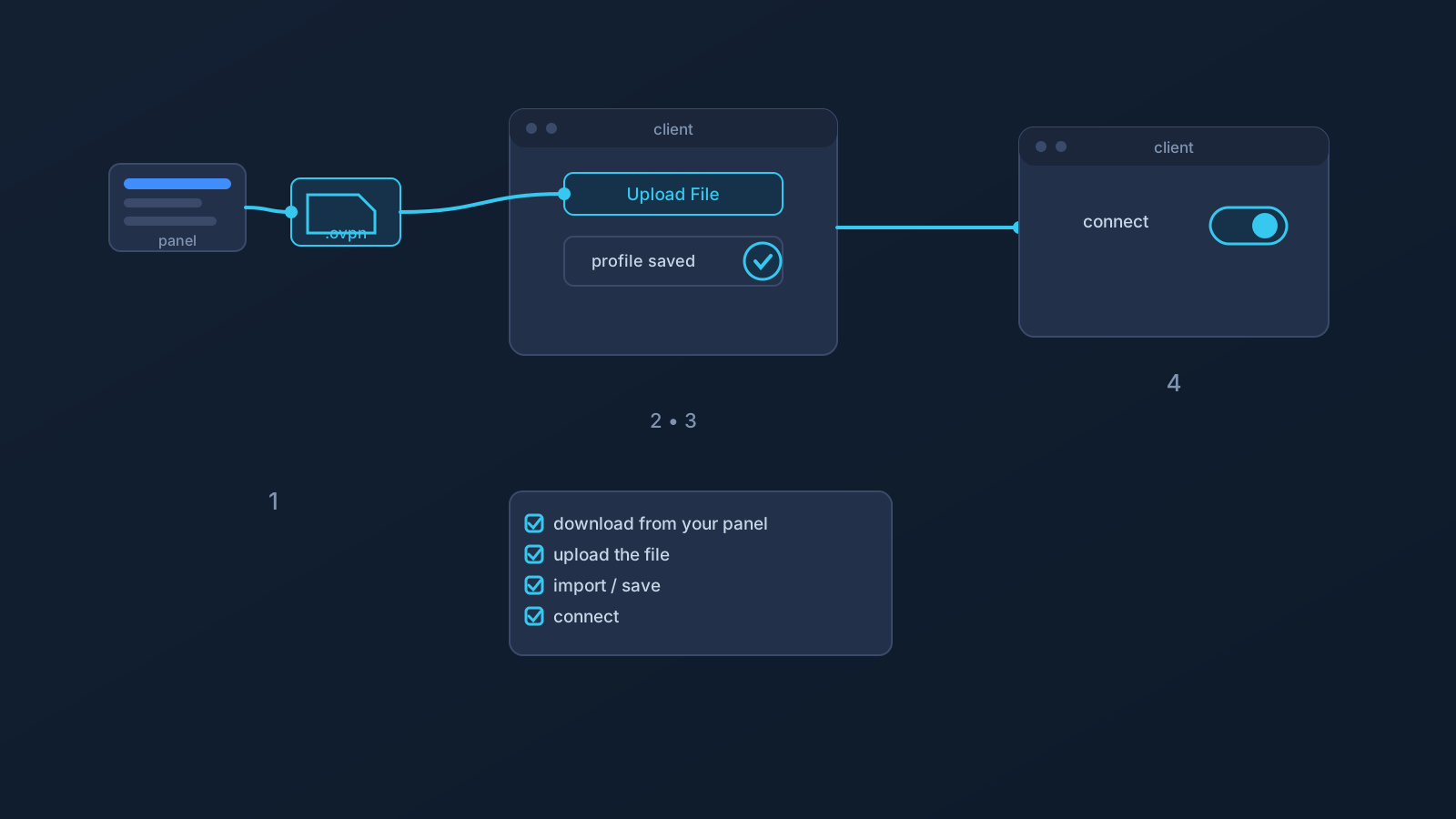
Lisar's supported OpenVPN setup fits in one line: Download .ovpn file → OpenVPN Connect → Upload File → Import/Save profile → Connect. Five steps, one file. The supported OpenVPN flow is built around the downloaded .ovpn file. If OpenVPN Connect or a Lisar setup guide asks for any required fields, use only the values shown in the Lisar Panel or official setup instructions for that profile.
That one line answers what to do. This article answers the quieter question underneath it — what is actually happening at each step — because setup is easier to trust, and easier to troubleshoot, when the flow isn't a mystery.
The file you download is the profile
The .ovpn file you download from your own profile in the Lisar Panel isn't a shortcut or an installer. It's the profile itself, packaged for import: the connection information that particular profile needs, in a format OpenVPN Connect understands.
Two things follow from that. First, the file is specific to the profile it came from — a file downloaded from one profile belongs to that profile, and details from one profile shouldn't be assumed to apply to another. Second, the file is sensitive setup material, and it deserves the same handling care as any account-related detail. The "VPN Profile File Safety" article covers those habits in full; the short version is that the file travels from your Panel to your own device and nowhere else.
What "Upload File" actually does
Inside OpenVPN Connect, Upload File is the import step: you point the client at the downloaded .ovpn file, and the client reads it. That's the entire job of the upload — the client takes the profile's connection information from the file and turns it into a profile entry inside the app.
In this setup context, Upload File means selecting the downloaded .ovpn profile file inside OpenVPN Connect so the client can import it. Follow the prompts shown by OpenVPN Connect and Lisar's setup guide for your profile.
Import and save: the file has done its job
Once imported and saved, the profile appears in OpenVPN Connect's own list. From that point on, the client works from its saved profile — which is why this step matters more than it looks: the visible outcome of a successful setup is simply your profile, listed in the client, ready to connect.
The downloaded file itself has now done its job. Any copy still sitting in a downloads folder remains sensitive setup material, so the same file-safety habits keep applying to it: keep it off shared machines, out of synced or shared folders, and out of chats and email.
Connect: what the toggle means
Connecting tells OpenVPN Connect to establish the VPN connection using the saved profile. At the concept level, that's the whole meaning: your device's traffic now uses the VPN path that profile defines, for as long as the connection is up.
What connecting does not mean is just as worth saying: it doesn't guarantee access to any particular website, app, or service; it doesn't guarantee anonymity or any particular speed; and it doesn't make any network fully safe by itself. It establishes a connection — the rest of this series covers, honestly, what that does and doesn't imply.
If the client asks for anything else
Depending on your profile, OpenVPN Connect may ask for additional details during or after import. The rule for that moment is simple and absolute: your own profile in the Lisar Panel is the source. Use exactly what the Panel and the setup guide for your device show for your profile — and never guess, reuse values from an old screenshot, or borrow details from someone else's setup.
If what you're seeing doesn't match what your Panel shows, that's a question for the setup guide or official Lisar support, not for improvisation.
Where this flow does and doesn't apply
This flow is the supported OpenVPN setup path for devices covered by Lisar's OpenVPN setup guides, such as the Windows and Android guides. It isn't a promise that every device, OS version, or network supports it — platform support varies, router and network-device setup is its own separate path for compatible devices only, and some managed devices restrict what can be installed or imported at all.
Lisar's supported OpenVPN setup is the file download plus Upload File flow. If another OpenVPN walkthrough describes a different setup style, use Lisar's own setup guide instead.
Frequently asked questions
Do I type my connection details into OpenVPN Connect manually?
No. The supported flow is built around the downloaded .ovpn file: Upload File imports the profile's connection information for you. If the client asks for anything beyond the file, use exactly what your own profile in the Lisar Panel shows — never guess.
Does "Upload File" send my profile somewhere? No. Upload File is the import step on your own device: OpenVPN Connect reads the downloaded file and creates a saved profile entry from it.
What if another guide shows a different OpenVPN setup method? Use Lisar's own setup guide for your profile. Lisar's supported OpenVPN setup is: download the .ovpn file, open OpenVPN Connect, choose Upload File, import/save the profile, and connect.
What should I do with the .ovpn file after the profile is imported? Treat any remaining copy as sensitive setup material: keep it off shared or public machines, out of synced or shared folders, and out of chats and email. The VPN Profile File Safety article covers the full set of habits.
Does connecting guarantee access, speed, or safety? No. Connecting establishes the VPN connection your profile defines. It doesn't guarantee access to any service, any particular speed, anonymity, or that any network is fully safe by itself.