
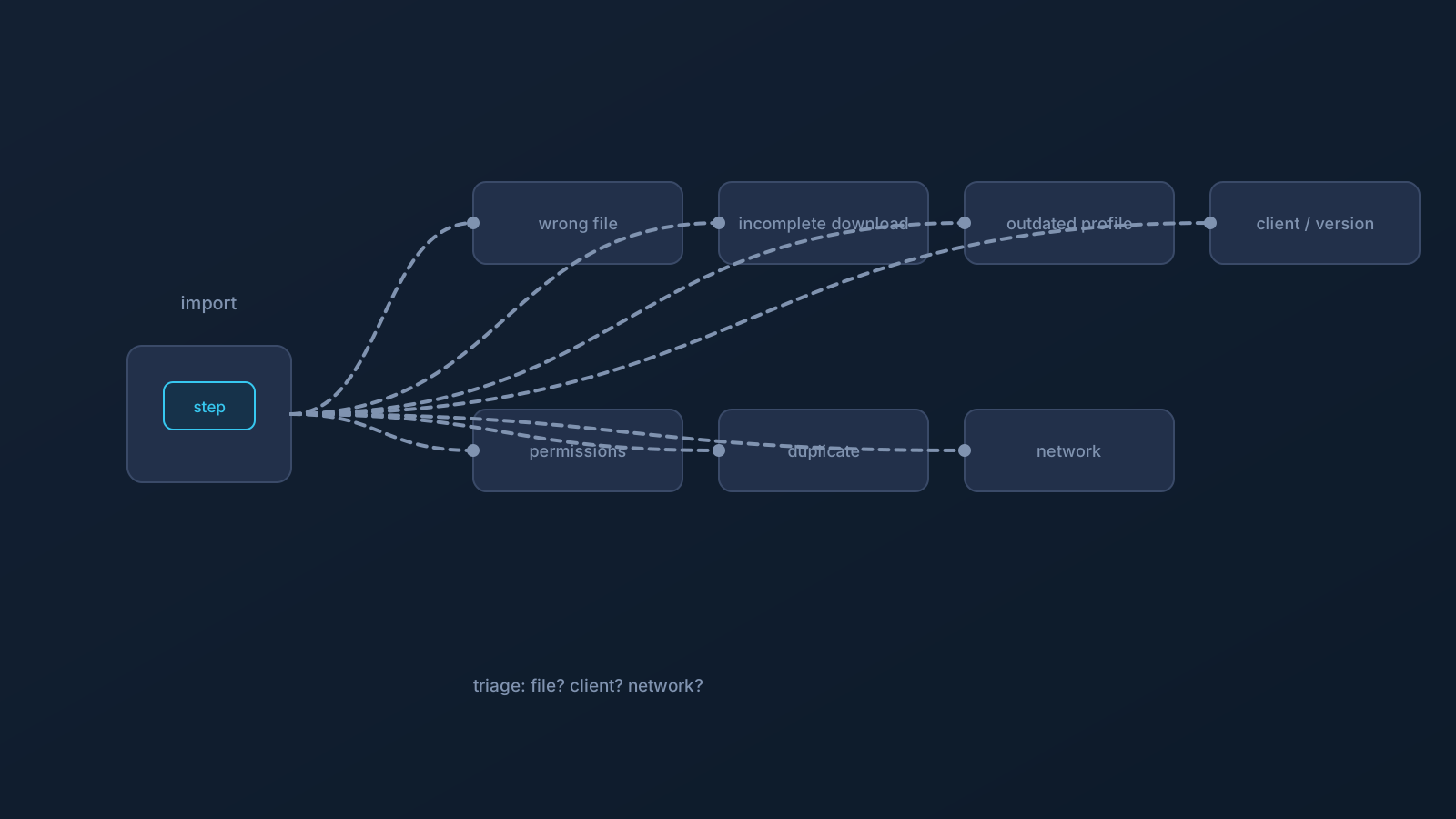
When importing a profile into OpenVPN Connect doesn't go smoothly, it rarely means something is seriously wrong — most import hiccups fall into a handful of recognizable categories, and knowing the categories turns "it won't work" into "ah, it's probably that one." This is a field guide to reading them calmly.
Throughout, the supported path is the same reference point: download the .ovpn file, open OpenVPN Connect, choose Upload File, import and save the profile, and connect. Most import problems are simply one of the steps in that path needing another look.
Wrong file
The most common category is also the most fixable: the file being imported isn't the profile file. It's easy to grab the wrong thing — a different download, a renamed file, something that isn't actually the .ovpn profile at all. If the client doesn't recognize what it's given, the first check is whether the file you selected is genuinely the .ovpn file you downloaded from your own Lisar Panel profile.
Reading it: "this doesn't look like a profile" usually means exactly that. Re-download fresh from the Panel and select that file specifically.
Incomplete or corrupted download
A profile file that didn't finish downloading — or got interrupted partway — can look present while being incomplete. Spotty connections, an interrupted transfer, or a download that was cut short all produce a file that isn't whole, and a client can't import instructions that aren't all there.
Reading it: if a file that should be fine won't import, treat the download itself as suspect. Download it again, fresh from the Panel, on a stable connection, and try importing the new copy.
Outdated profile
Sometimes the file imports but reflects an older state, because it's an old saved copy rather than a current one. Profiles have lifecycles, and a file kept from months ago may no longer match what your current profile should be.
Reading it: if you're importing from something saved earlier, that's the thing to replace. The current profile is whatever your own Lisar Panel provides now — download fresh rather than reusing an old file, and let the Panel be the source of truth.
Client behavior and versions
Clients differ in how they present the import step, and behavior can vary between versions or platforms. A screen that doesn't match a guide, an option in a different place, or a client that behaves unexpectedly can all make import feel stuck when the profile is fine.
Reading it: separate the file from the client. If the file is current and correct, the friction is on the client side — make sure the client is a supported, up-to-date OpenVPN-compatible client, and follow the setup guide for your actual device and client rather than a generic one. The client's own maker documents its behavior.
Device permissions
Setting up a VPN profile touches parts of a device that ask permission — and if a needed permission isn't granted, the client may be unable to complete the import or enable the connection. This is normal device behavior, not a fault: the device is asking before allowing.
Reading it: if the client indicates it needs permission to proceed, that's a device-level prompt to complete as directed, following the setup guide for that operating system. On company- or client-managed devices, what's permitted is the policy owner's call — asked first, always — and this article doesn't suggest working around any device policy.
Duplicate profiles
Importing a profile that's already present, or importing the same one twice, can produce confusion about which is which. A pile of similar-looking profiles makes it hard to tell the current one from an old attempt.
Reading it: keep it tidy. Work from a single current profile, freshly downloaded, and clear out stale duplicates so there's one obvious right answer — again following your client's own documented way of managing its profile list.
Network restrictions
Finally, some import and connection difficulty isn't about the file or the client at all — it's the network. A network may handle certain connections in its own way, and captive-portal networks (hotels, airports) often need their sign-in step completed before anything else works.
Reading it: if things behave oddly on one network but not others, suspect the network. Complete any captive portal first, test on a network you know works, and remember that not every network will support every setup — a fallback beats fighting one uncooperative network.
Reading them together
The meta-skill is triage by separation: is this the file (wrong, incomplete, or outdated), the client (behavior, version, permissions, duplicates), or the network? Each category has a calm next step, and almost all of them lead back to the same reliable move — a fresh download of the current profile from your own Lisar Panel, imported through the supported flow, on a network you trust. When a problem outlasts that, official Lisar support is the place to take specific observations.
Frequently asked questions
Why won't OpenVPN Connect recognize my profile file?
Most often the wrong file was selected, or the download didn't finish. Re-download the .ovpn file fresh from your own Lisar Panel profile on a stable connection, and select that specific file when importing.
My profile imported but something seems off — could it be outdated? Yes, if you imported an old saved copy. Profiles have lifecycles, so a fresh download from the Panel is more reliable than a file kept from earlier. The Panel is the source of truth for your current profile.
The import screen doesn't match the guide I'm following. What now? Client screens vary by version and platform. If the file is current and correct, follow the setup guide for your actual device and client rather than a generic one, and make sure the client is a supported, up-to-date OpenVPN-compatible client.
The client is asking for a device permission — is that a problem? No — that's normal device behavior, asking before allowing. Complete the prompt as directed, following the setup guide for your operating system. On managed devices, what's permitted is the policy owner's call.
Import works at home but not on hotel Wi-Fi. Why? Likely the network. Captive-portal networks often need their sign-in step completed first, and some networks handle connections in their own way. Complete the portal, test on a known-good network, and use a fallback if one network won't cooperate.