
Video calls are demanding, and when one goes poorly it's tempting to pin it on whatever changed most recently — often the VPN. But call quality depends on a whole set of factors, and a VPN is one of them, not the whole story. This article sets realistic expectations for using a VPN during video calls and gives a calm order for troubleshooting when a call isn't going well.
Up front, the honest framing: this article doesn't claim a VPN makes calls better, faster, or more stable. It explains how a VPN fits into the many things that shape a call, so your expectations and your troubleshooting both land in the right place.
What actually shapes a video call
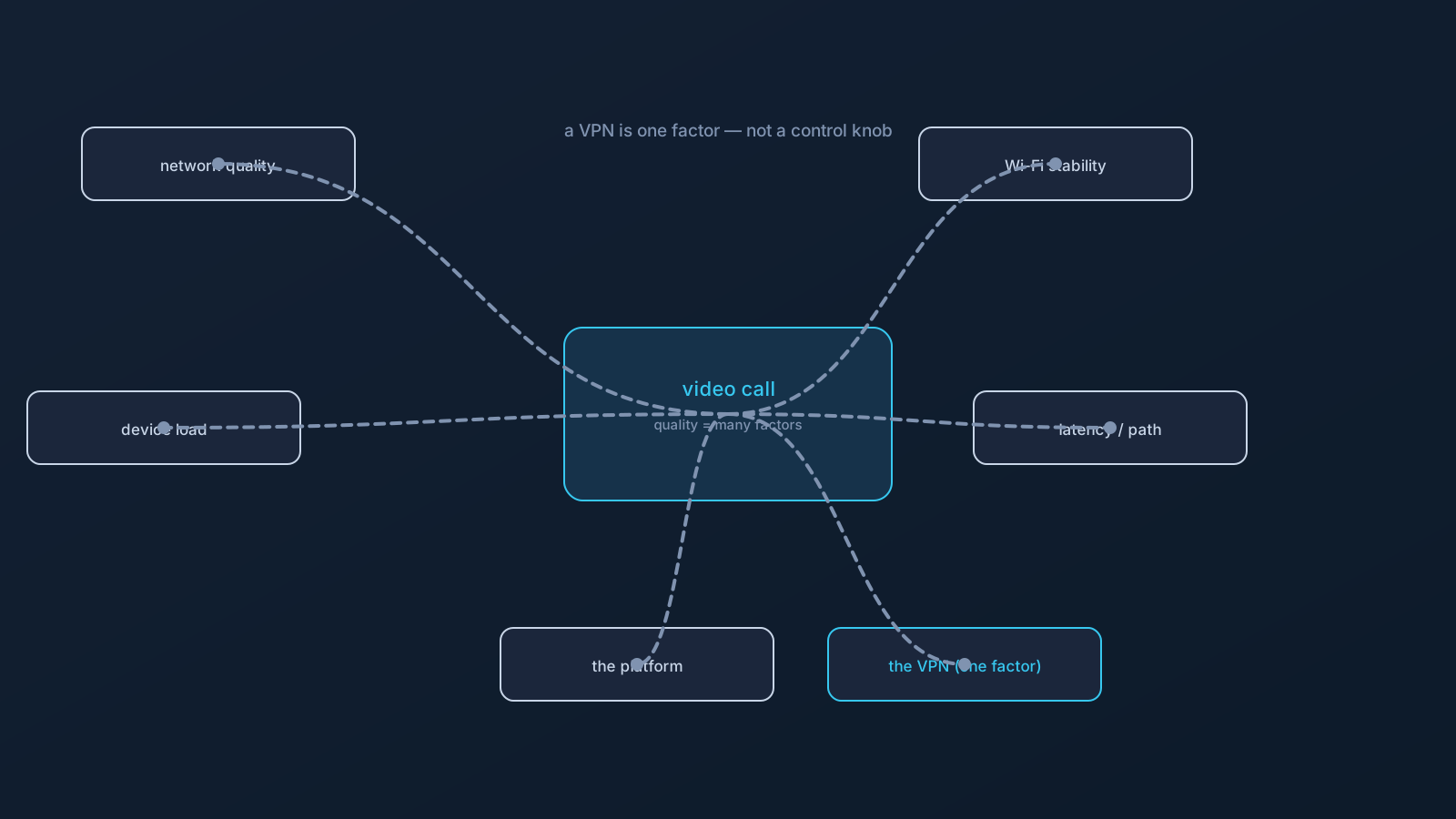
A video call's quality is the product of many factors working together. Your network's quality and how busy it is at that moment. The stability of your Wi-Fi, or whether you're on a marginal signal. How much your device is doing — a loaded machine handles video differently than an idle one. The latency and path your connection takes. And the meeting platform's own behavior, servers, and current conditions, which are entirely outside your setup.
A VPN adds one more factor to that set: your traffic takes the VPN's path. It joins the crowd rather than overriding it — which is exactly why call quality can't be attributed to the VPN alone, in either direction.
Where the VPN fits, honestly
Because a VPN routes your traffic along a particular path, it's part of the network picture during a call — one input among your local network, your Wi-Fi, your device, and the platform. What it is not is a control knob that makes calls smooth or a switch that necessarily disrupts them; it's a factor whose effect depends on all the others around it.
That's the realistic frame: a VPN is present in the picture, not in charge of it. Setting expectations there — rather than expecting the VPN to fix a shaky connection, or blaming it for every glitch — is what keeps you troubleshooting productively instead of chasing the wrong thing.
A calm troubleshooting order for rough calls
When a call is going badly, work through the factors in a sensible order rather than changing everything at once:
Start with the basics that matter most. Is your Wi-Fi signal solid, or are you on a marginal spot? Is your device overloaded with other work? These local factors shape calls heavily and are the quickest to check and improve — moving closer to the router or closing heavy apps often does more than anything else.
Check whether it's the platform. Meeting platforms have their own outages and busy periods. If calls are rough across the board, the platform's own status is worth a look before assuming anything local — it may not be your setup at all.
Consider your network at this moment. Networks get congested, especially at peak times. A rough call on a busy network may be about that moment; testing at another time or on another network helps separate a one-off from a pattern.
Then consider the VPN as one factor. If you're troubleshooting methodically, you can observe how a call behaves as one variable among the others — while keeping in mind that a fresh profile from your own Lisar Panel, set up the supported way (download the .ovpn file, open OpenVPN Connect, choose Upload File, import and save the profile, and connect), rules out a stale local profile. Change one thing at a time, so you can actually tell what affected what.
Remember what you don't control. The other participants' connections, the platform's servers, and the wider internet between you all affect a call and sit outside your setup entirely. Some call quality simply isn't yours to fix.
Realistic expectations, stated plainly
The honest set of expectations looks like this. A VPN is one factor in call quality, not the determining one. It doesn't make calls faster, smoother, or more stable, and this article makes no such claim — nor does it promise any particular call will work a certain way, since too much of the picture (the platform, the other participants, the moment's network conditions) is outside any one setup's control. And not every network or situation will handle a demanding video call the same way.
What you can do is control your own side sensibly: a solid local connection, a device that isn't overloaded, a methodical troubleshooting order, and realistic expectations about the parts that aren't yours. That's the productive version of "using a VPN during video calls."
The short version
- Video call quality depends on many factors: network quality, Wi-Fi stability, device load, latency, and the platform itself.
- A VPN is one factor in that picture, not the whole story, and not a control knob over call quality.
- This article claims no improvement, speed, or stability benefit from the VPN — it sets expectations, not promises.
- Troubleshoot in order: local basics first (Wi-Fi, device), then the platform, then the network moment, then the VPN as one variable.
- Some of a call's quality — other participants, platform servers, the wider internet — simply isn't yours to control.
Frequently asked questions
Will a VPN make my video calls better or more stable? This article makes no such claim. A VPN is one factor in call quality among many — your network, Wi-Fi, device load, and the meeting platform all matter too. It doesn't act as a control knob over calls; its effect depends on all the other factors around it.
My video calls are rough while connected — is the VPN the cause? Not necessarily. Call quality depends on many things, and the VPN is one factor, not the whole story. Check the basics first — Wi-Fi signal, device load — then the platform's status, then your network at that moment, before treating the VPN as the cause.
What should I check first when a call is going badly? The local basics that matter most: a solid Wi-Fi signal (move closer to the router if needed) and a device that isn't overloaded (close heavy apps). These shape calls heavily and are quickest to improve. Then check the platform, the network moment, and the VPN as one variable.
Does a VPN work with every meeting platform and network for calls? Not every network or situation handles a demanding video call the same way, and platforms have their own behavior and conditions. Rather than assuming universal compatibility, troubleshoot methodically and keep expectations realistic about the parts outside your setup.
Why is my call quality bad even though my setup seems fine? Some of a call's quality isn't yours to control — the other participants' connections, the platform's servers, and the wider internet between you all affect it. If your own side is solid (connection, device, methodical checks), the remaining factors may simply be external.