
Two-factor authentication has a way of surprising VPN users: connect through the profile, open a familiar account, and there's the prompt asking for a code anyway. If the VPN was supposed to make connections smoother, why is the account still asking questions?
Because the VPN and the second factor live on different layers, doing different jobs — and the prompt appearing is both layers working correctly. This article separates them, explains what a consistent setup genuinely helps with, and covers the practical part travelers actually need: keeping second factors workable wherever you are.
Different layers, different jobs
A VPN operates on your connection: it shapes the network path your traffic takes. Two-factor authentication operates on your account: it verifies that the person signing in holds something more than a password. The two never substitute for each other — a steadier network path says nothing about who's holding the device, which is precisely the question a second factor exists to answer.
So 2FA prompts appearing while connected isn't a conflict or a malfunction. Accounts ask for second factors on their own schedules and policies — new devices, sensitive actions, elapsed time, changed circumstances — and the network path is, at most, one circumstance among many they weigh.
Why you want the prompts to keep working
It's worth saying plainly: the second factor is protecting you. It's the layer that stands between your account and anyone who obtains your password, and an account that stopped asking would be a worse home for your things, not a smoother one. The goal of a well-set-up connection was never fewer protections — it was fewer unnecessary question marks, which is a different thing entirely.
That framing settles the tempting question before it's asked: no VPN setup is a way around account security, and none should be wanted as one. Verification steps are completed through each service's own process, on that service's terms — that's not the obstacle to the account; it's the account's front door working.
What a consistent setup actually helps with
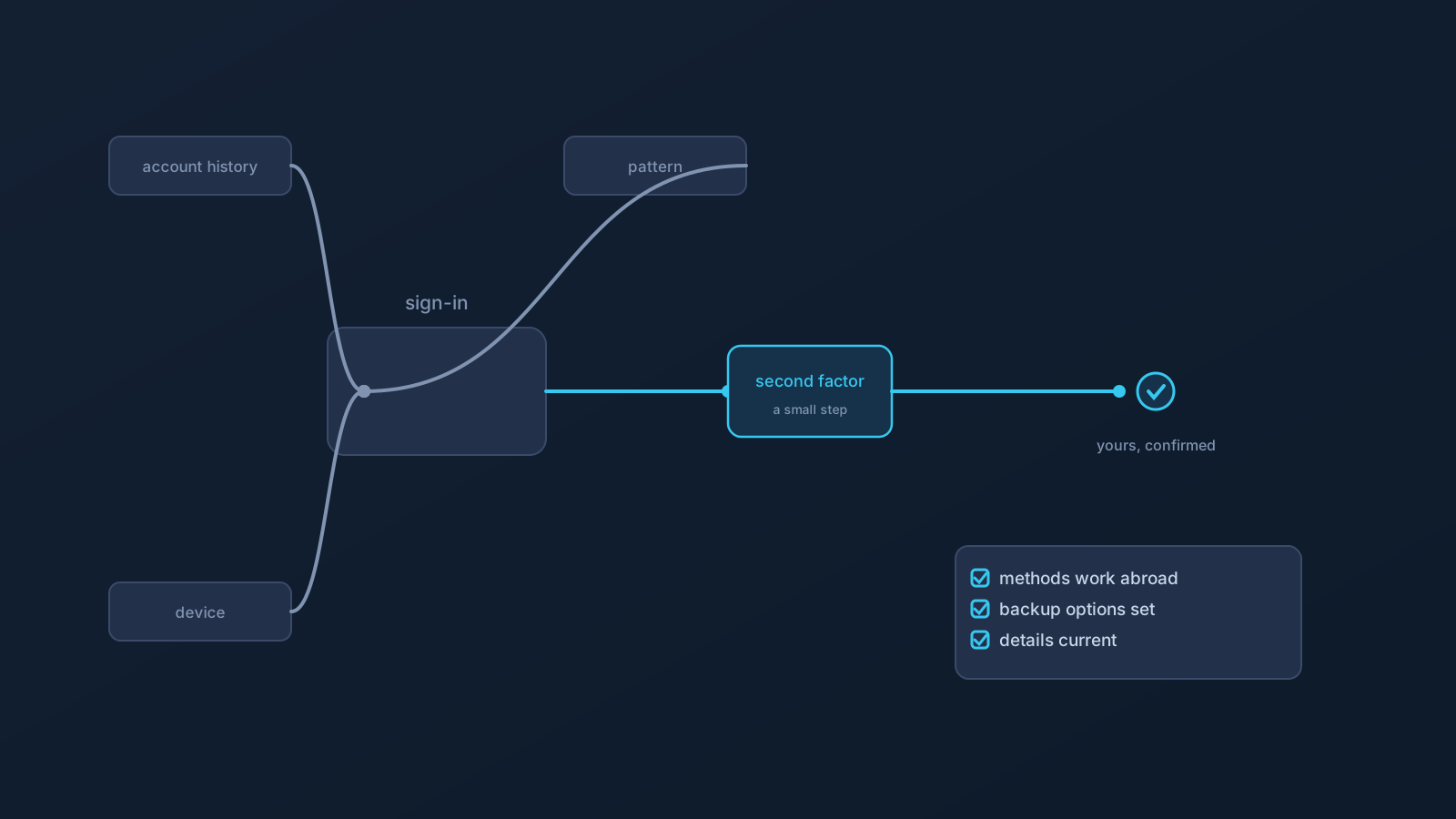
Within its own layer, consistency earns its keep. Services weigh whole pictures at sign-in — account history, device familiarity, location consistency, and how usual the pattern looks — and avoidable variation in your network picture adds question marks you didn't need. A steady setup — your own profile from the Lisar Panel, set up the supported way (download the .ovpn file, open OpenVPN Connect, choose Upload File, import and save the profile, and connect), used consistently rather than switched around — removes that avoidable noise for ordinary, legitimate use.
The honest scope: fewer unnecessary prompts is a reasonable hope; fewer protections is not the goal and not on offer. Where a plan includes routing features, they apply as plan properties — GeoDNS, DNS AdBlock and Custom Exit are available according to plan. — and none of them changes what any account's security asks of you.
Keeping second factors workable — especially abroad
The practical failure mode with 2FA isn't the prompt appearing; it's the prompt appearing when you can't answer it. That's a readiness problem, and it's solvable — and solving it has a quiet second payoff, because the same questions that make a second factor travel-ready (does it live on more than one thing, could I still complete it if this device were gone) are exactly the questions that matter if a phone is lost or stolen mid-trip. Ten calm minutes at home answer them once for both situations. The readiness itself is straightforward before it happens. Before travel especially, confirm your second-factor methods will actually work where you're going: an authenticator app on a device you're bringing beats a code sent somewhere you can't receive it, and knowing your account's backup verification options — and having them set up in advance — is the difference between a thirty-second prompt and a locked-out evening.
Keep the surrounding details current too, since they're part of how services reach and recognize you: contact information, billing details, and the devices your accounts consider familiar. And test the whole arrangement the same way this series recommends testing everything: at home, before departure, while fixes are one login away.
When a prompt becomes a problem
Occasionally a verification step genuinely sticks — a code that won't arrive, a method tied to something out of reach. The path through is the service's own: use that account's backup verification options, follow its recovery process, and work with its support channel. Completing the process the service defines is what resolves it; retrying around it resolves nothing and can add exactly the unusual-pattern noise you were avoiding.
Handled that way, second factors settle into what they should be: a small, occasional step that keeps your accounts yours — on any network, through any setup, wherever you happen to be signing in from.
Frequently asked questions
Why am I still getting 2FA prompts while connected to my VPN? Because they're different layers: a VPN shapes your connection's network path, while two-factor authentication verifies who is signing in to the account. Accounts ask for second factors on their own policies, and the prompt appearing means that protection is working.
Can a VPN setup reduce how often I'm asked to verify? A consistent setup reduces avoidable variation in your network picture, which can mean fewer unnecessary question marks at sign-in. It doesn't and shouldn't reduce the protections themselves — new devices, sensitive actions, and each service's own policies still prompt.
Should I want fewer security prompts? You should want fewer unnecessary ones — which steadiness helps with — while keeping the protections fully intact. The second factor is what stands between your account and anyone who obtains your password; an account that stopped asking would be less safe, not smoother.
How do I make sure 2FA works when I travel? Confirm before departure that your methods work where you're going: an authenticator app on a device you're bringing, backup verification options set up in advance, and current contact and billing details. Test at home, while fixes are one login away.
What if I can't complete a verification step? Use that account's backup options and its own recovery process, and work with its support channel. The service's process is what resolves it — retrying around it doesn't, and can add the unusual-pattern noise you were avoiding.