
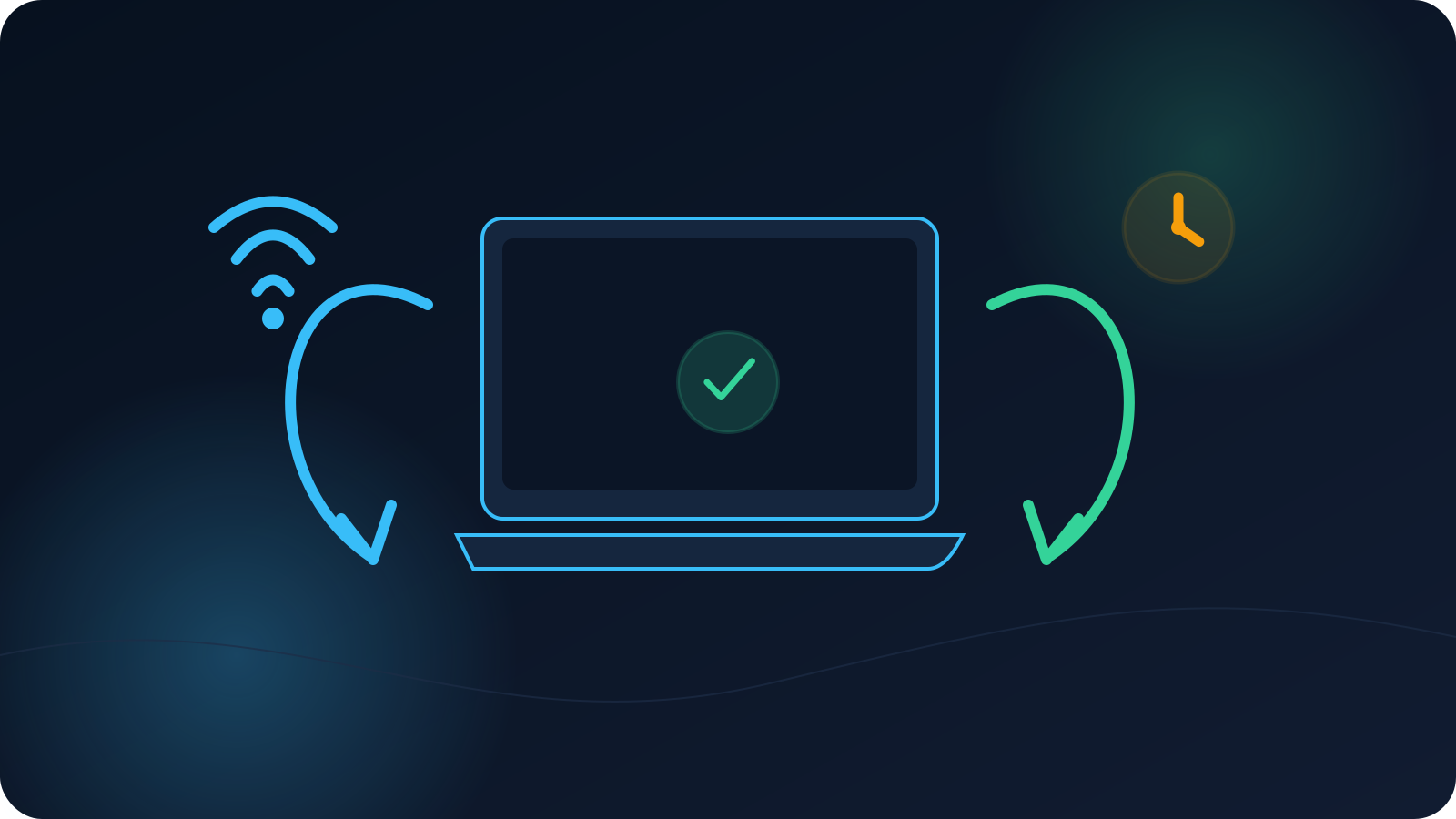
Restarting a phone, tablet, or computer ends active processes and network sessions. A VPN profile may remain saved in its client, but the connection that existed before the restart should not be assumed to remain active afterward.
The useful distinction is between stored configuration and current connection state. A restart can leave one intact while resetting the other.
What survives a restart and what does not
A saved profile is configuration information stored by the client. An active VPN session is a live network state. Most devices preserve the client and its profiles through a normal restart, but they stop the active session while the operating system shuts down.
After startup, the client may:
- remain disconnected until you open it;
- reconnect automatically when the operating system and network are ready;
- display the saved profile but require a new Connect action;
- ask for permission again after a major update or policy change;
- report an error because the underlying network is not ready yet.
These behaviors vary. The presence of a profile entry does not prove an active connection, and the absence of an automatic reconnection does not by itself mean the profile is damaged.
Wait for the normal network to become usable
After startup, Wi-Fi and mobile services may take time to reconnect. A guest or public network may require a sign-in page again. A laptop can also reconnect to a different remembered network than the one used before shutdown.
Before opening the VPN client, confirm:
- the expected Wi-Fi or mobile connection is active;
- ordinary internet access works;
- any captive-portal sign-in is complete;
- the device is not still applying startup updates or network policy.
Starting several VPN attempts while the underlying network is changing can produce timeouts or duplicate status messages that disappear once the device is fully ready.
Confirm time, updates, and device policy
Automatic date and time should normally synchronize after startup. If the clock, date, or time zone is wrong, connection validation may fail even when the profile is otherwise current. Check the normal system setting rather than editing the profile.
Also ask why the device restarted. A routine restart is different from one that followed:
- an operating-system update;
- a VPN client update;
- a client reinstall;
- a device-management policy change;
- a device restore or migration;
- a network reset performed by an authorized administrator.
These events can change permissions, background behavior, or which application opens a profile. Record them because they may explain why the post-restart flow differs from the previous one.
Open the intended client and profile
Confirm that the expected client starts normally and that the intended current profile is visible. If several similarly named profiles exist, compare the approved label, assignment, or delivery date instead of choosing the first one.
A common mistake is to download the file again after every restart. That is usually unnecessary when the current profile is already saved. Repeated import attempts can create duplicate client entries and make it harder to know which one was tested.
Do not inspect, copy, or share sensitive profile contents to identify the file. Use the authorized source, visible name, revision label, user or device assignment, and service status.
Handle permission prompts carefully
A system may ask again for permission to add or use a VPN configuration after a major update, client reinstall, device migration, or policy change. Confirm that:
- you intentionally opened the expected client;
- the prompt names that client;
- the profile came from the approved source;
- you are allowed to add the configuration on this device.
On an organization-managed device, do not work around a blocked or altered prompt. Follow the approved device policy and contact the responsible administrator.
Recheck connection status instead of assuming
After the client is ready, distinguish these states:
- profile is visible;
- profile is selected;
- client is Connecting;
- client reports Connected;
- ordinary internet and expected services work while connected.
A familiar system icon from before the restart is not reliable evidence. Open the client or operating-system VPN status and confirm the current state.
If the client reports Connected, use the normal first-connection verification steps documented for the service. Do not infer account country, billing region, GPS location, or application-specific behavior from the VPN status alone.
Avoid duplicate setup attempts
When the first attempt fails after startup, preserve the result before changing anything. Record the visible status, timing, network, client version, and whether the restart followed an update. Then compare one condition, such as waiting for the network to stabilize or trying another authorized network.
Avoid:
- repeatedly importing the same file;
- deleting profiles without confirming which revision is current;
- manually editing
.ovpn filecontents; - changing router, firewall, or device-security settings;
- using another person’s profile;
- assuming a reinstall is always required.
Post-restart checklist
Use this sequence:
- Wait for startup and updates to finish.
- Confirm ordinary internet access.
- Complete any network sign-in page.
- Confirm automatic date and time.
- Open the intended VPN client.
- Select the current assigned profile.
- Review any system permission prompt.
- Connect and confirm the actual client status.
- Record any repeatable error before changing the setup.
After a restart, recheck these basics
After a restart, confirm the device is fully online, the correct profile is selected, automatic date and time are correct, and the client has any required operating-system permission. A restart can change temporary network state without changing the profile itself.
Frequently asked questions
Do I need to import the profile after every restart?
Normally not when the current profile remains saved in the client. Reimport only when the documented setup or access owner requires a new file.
Why did the client ask for permission again?
A major update, reinstall, device migration, or policy change may require fresh operating-system approval.
Can the VPN reconnect automatically after startup?
Some clients and operating systems may support that behavior, but it is not universal and depends on the approved configuration.
Why does the first attempt after startup fail but the second succeed?
The underlying network, device time, or startup services may not have been fully ready during the first attempt. Record the timing if the pattern repeats.
Does a saved profile mean access is still active?
No. The file can remain present after the associated access becomes inactive, expires, or is replaced.