
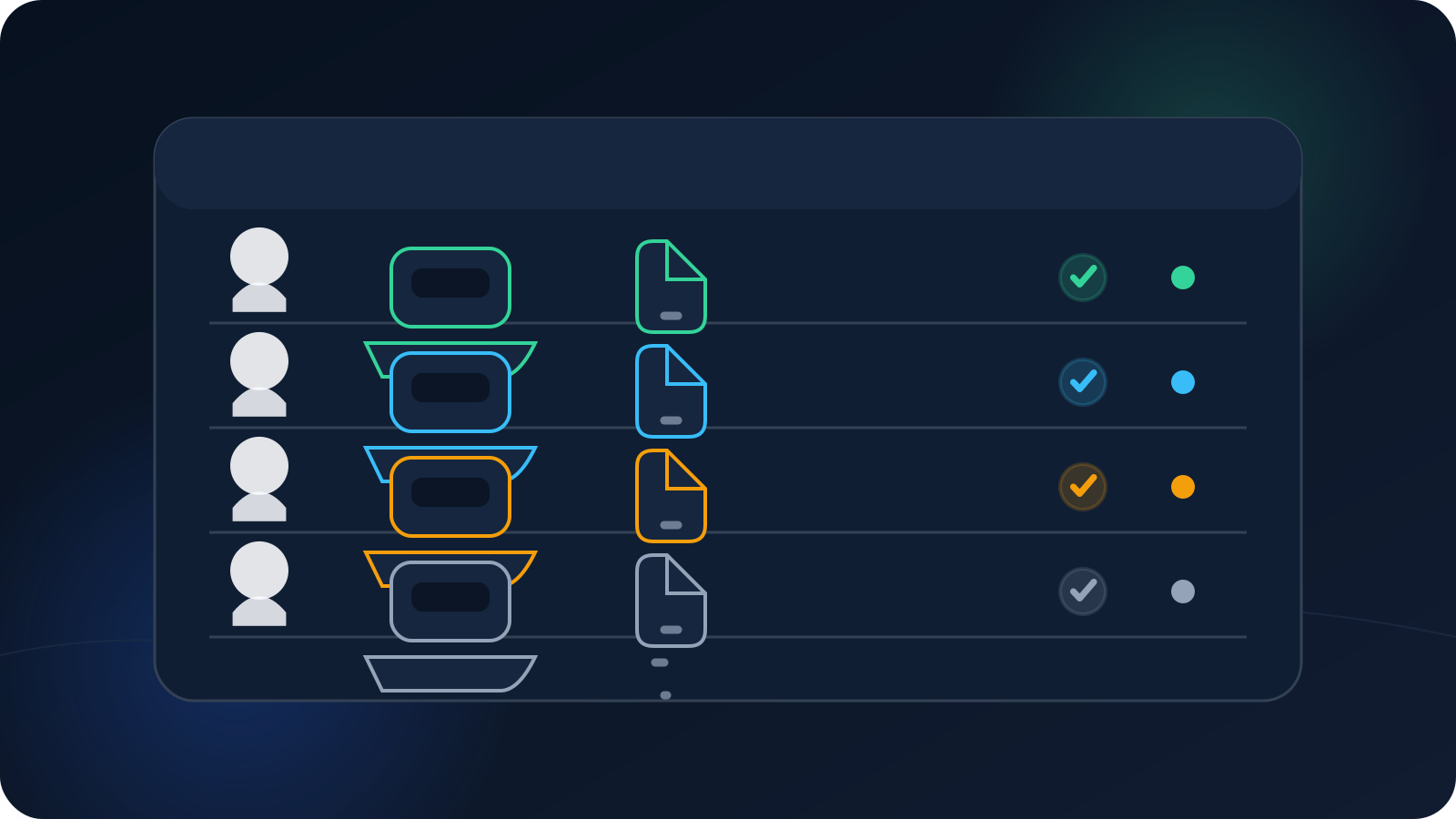
A VPN access inventory is a simple list of who has access, which device the access is meant for, what the assignment is used for, and whether it is still current. It is not a copy of profile files and it is not a password list.
For a small team, a spreadsheet or lightweight internal table is usually enough. The value comes from keeping it accurate when people join, leave, replace a device, or receive an updated profile.
What the inventory should answer
A useful inventory lets the team answer these questions without opening profile files:
- Who is the access assigned to?
- Which device or router is it intended for?
- What is the approved purpose?
- Which profile revision is current?
- Is the assignment active, awaiting setup, or no longer needed?
- Who should review the record when something changes?
If the table cannot answer those questions, it is probably either too sparse or filled with the wrong kind of detail.
Use a small set of practical fields
Start with fields the team will actually maintain:
| Field | What it is for |
|---|---|
| Owner | Person or approved role responsible for the assignment |
| Device | Laptop, phone, router, or approved device label |
| Purpose | Work, travel, office router, contractor access, or another approved use |
| Profile label | The same non-sensitive label used in the filename or client |
| Current revision | A date or revision such as R03 |
| Status | Awaiting setup, active, needs review, replaced, or closed |
| Last checked | When the assignment was last confirmed |
| Notes | Short non-sensitive context or next step |
That is enough for many teams. Add fields only when they solve a recurring problem.
Keep profile contents and credentials out of the inventory
The inventory is a tracking tool, not a secret store. Do not paste or attach:
.ovpn filecontents;- passwords, tokens, or verification codes;
- private keys or certificate data;
- screenshots containing sensitive values;
- billing or payment details.
A profile label such as mina-laptop-work-r03 is useful. The profile itself is not.
Update the inventory at the moment work happens
Inventories become unreliable when updates are postponed. The best time to update a record is during the event that changed it.
When someone joins
Create the assignment record before or during setup. Record the intended owner, device, purpose, and initial profile label. Once the person confirms a successful connection, update the status and last-checked date.
When a device is replaced
Do not overwrite the old device label with no explanation. Mark the old assignment as replaced or closed, then create or update the record for the new device. This keeps the history understandable without storing technical secrets.
When a profile is reissued
Update the current revision and add a short note explaining the ordinary reason, such as device replacement or updated connection information. The detailed profile content should not be copied into the inventory.
When someone leaves or no longer needs access
Mark the record for the approved offboarding process and track the resulting status. Do not assume that deleting a local file alone changes the service-side access state.
Use clear statuses instead of vague notes
A small set of status values makes the table easier to scan:
- Awaiting setup — assigned but not yet confirmed on the intended device.
- Active — current assignment confirmed for normal use.
- Needs review — something changed or the record has not been confirmed recently.
- Replaced — a newer assignment or profile revision took its place.
- Closed — the assignment is no longer part of the active inventory.
Avoid statuses such as maybe, old?, or probably fine. If the team is uncertain, Needs review is clearer and gives someone a next action.
Give each record one clear owner
The owner does not need to be a full-time administrator. It can be the person using the profile, the team lead, or whoever handles setup. The important point is that someone knows they are responsible for confirming the record when a device, role, or profile changes.
For shared office equipment, assign the record to a named responsible person or role rather than leaving it as “shared” with no owner.
Review the inventory in a short, repeatable way
A lightweight review can take a few minutes:
- Compare the list with the current team roster.
- Check whether any devices were replaced or retired.
- Confirm that the profile revision recorded as current still matches the setup notes.
- Look for
Awaiting setuporNeeds reviewrecords that have no next step. - Confirm that shared equipment still has a named owner.
- Close or update records that no longer reflect current use.
The review is about keeping the list useful, not collecting more data.
A simple example
| Owner | Device | Purpose | Profile | Status |
|---|---|---|---|---|
| Mina | Laptop-07 | Daily work | mina-laptop-work-r03 | Active |
| Sales room | Router-02 | Shared office | sales-router-office-r02 | Needs review |
| Contractor 7 | Phone-04 | Travel task | contractor7-phone-travel-r01 | Awaiting setup |
The example identifies assignments without exposing any access material.
Frequently asked questions
Do we need special inventory software?
Not necessarily. A protected spreadsheet or internal table is usually enough for a small team, provided access is limited and someone keeps it current.
Should the inventory include every downloaded copy of a profile?
No. Track the approved assignment and current revision, not every local duplicate in a downloads folder.
Is the inventory proof that a connection is active right now?
No. It records assignment and lifecycle information. A live VPN client status is a separate signal.
How often should the list be reviewed?
Review it when people, devices, or profiles change, plus a periodic check that fits the pace of the team.