
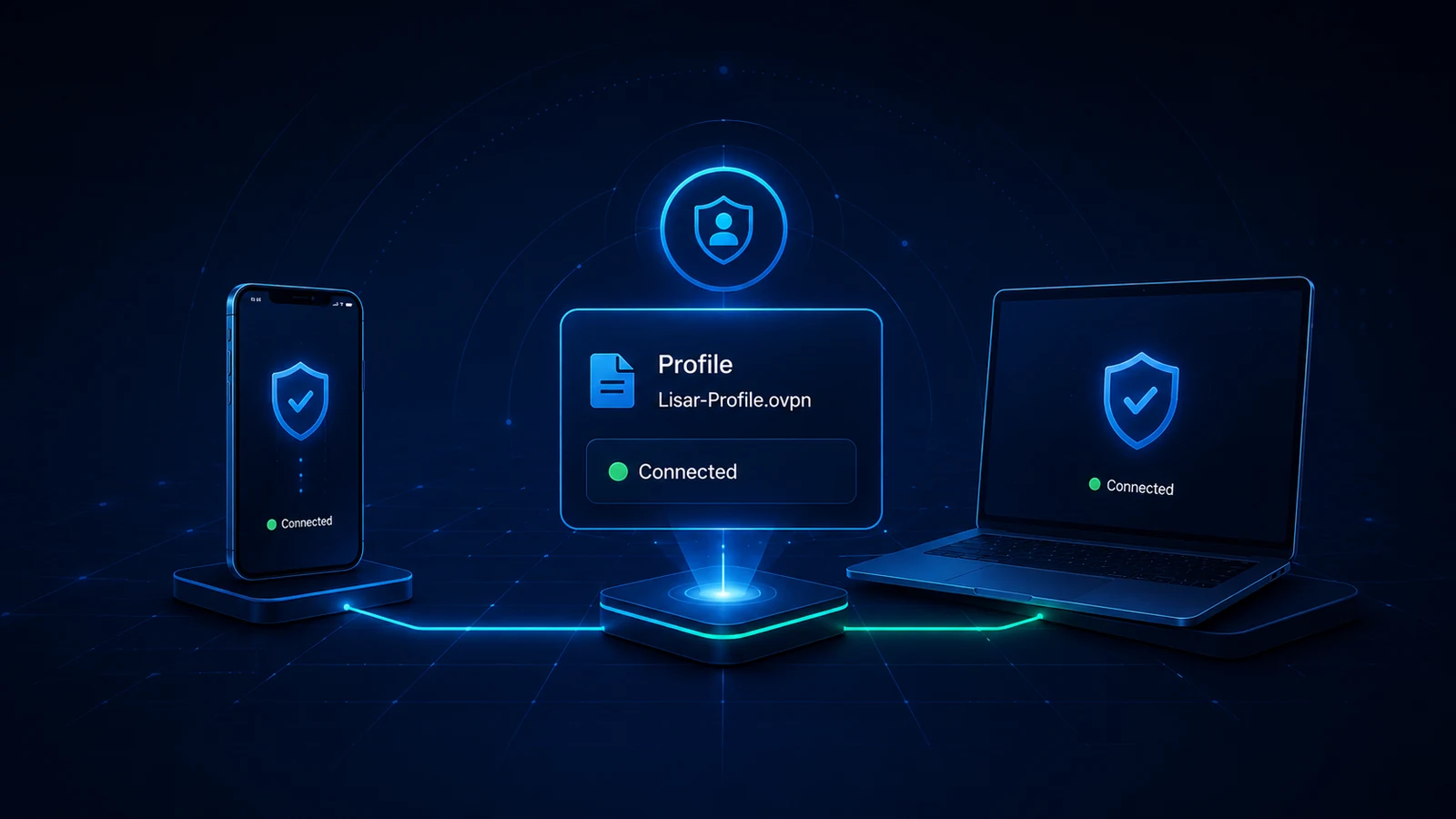
Using the same VPN profile on a phone and laptop does not create two identical environments. The profile supplies connection information, but each device adds its own operating system, VPN client, permissions, network path, DNS behavior, power rules, and local applications.
When one device connects and the other does not, the difference is useful evidence. It does not automatically prove that the profile is invalid or that one device is universally unsupported.
The profile is only one part of the environment
A VPN result depends on several layers:
- the assigned profile and its current access state;
- the VPN client that imports and uses it;
- the operating system’s networking and permission model;
- the active Wi-Fi or mobile network;
- local DNS, browser, security, and battery settings;
- organization policy on managed devices.
The profile can be identical while several of these layers differ. Troubleshooting should therefore compare the full environment rather than only the file name.
Compare VPN clients before comparing results
The phone and laptop may use different client applications or different versions of the same client. They can display different status words, request permissions at different stages, and handle reconnection differently.
Confirm the client name and version on both devices. Verify that both are compatible with the profile type and that each import completed successfully. Do not assume that an application with “VPN” in its name supports the same profile format.
A profile that appears in a client list may still be an old import, an incomplete entry, or a similarly named revision. Compare the authorized delivery date or revision label rather than relying on the visible name alone.
Operating systems handle networking differently
Phones and laptops apply different controls to background activity, sleep, network transitions, system permissions, and local-device access. A phone may suspend a client when the screen locks. A laptop may change behavior when the lid closes or when it wakes from sleep.
The operating system may also treat DNS, IPv6, local network access, and VPN permission prompts differently. These differences can affect connection behavior without any change to the profile.
After a major system update, record the version and whether the device displayed new permission or security prompts. Follow the client and device documentation rather than changing sensitive profile contents.
The two devices may not be on the same network
A phone may be using mobile data while a laptop uses Wi-Fi, even when both appear to be in the same room. A phone can also switch automatically between Wi-Fi and mobile data when signal quality changes.
For a fair comparison, confirm the actual network on each device. If permitted, test both on the same authorized Wi-Fi, then test one device on a second authorized network. Do not use restricted networks or attempt to bypass their policies.
A result that changes with the network suggests that the profile can work in at least one environment. It does not identify the exact network condition by itself.
Local DNS and browser behavior can differ
A browser on the laptop may use a different DNS mode, cached result, extension, or proxy setting from a browser on the phone. Private DNS or encrypted DNS settings can also differ by device.
This means that two connected devices may resolve a site differently or show different filtering results even when both VPN clients report Connected. Compare the VPN status separately from browser and DNS behavior.
Clear conclusions require controlled tests: same site, similar time, known browser state, and documented DNS settings. Avoid promising that every application will show identical results.
Permissions and managed-device policy matter
One device may be personally owned while the other is managed by an employer or organization. Managed devices can restrict VPN configurations, approved clients, background operation, or local-network access.
Do not try to defeat those controls. If the managed device behaves differently, confirm the approved setup with the device administrator. A valid profile does not override organization policy.
Also confirm that the profile is authorized for both devices. Some access assignments may be intended for a particular user, device, or purpose. Do not casually copy profiles between devices.
Use a comparison table instead of assumptions
Record both environments side by side:
| Check | Phone | Laptop |
|---|---|---|
| Operating system/version | ||
| VPN client/version | ||
| Profile revision/date | ||
| Network type | ||
| Automatic date/time | ||
| Managed device | ||
| Import status | ||
| Connection status | ||
| Exact error wording | ||
| Recent update/restart |
Do not place credentials, private keys, tokens, or full profile contents in the table.
A fair test method
- Confirm that both devices are allowed to use the profile.
- Confirm the intended compatible client on each device.
- Confirm the same current profile revision.
- Set date and time automatically.
- Test ordinary internet access first.
- Use the same authorized network when practical.
- Record the exact connection stage on each device.
- Change one condition at a time.
If one device consistently works and the other does not, the evidence points toward the device, client, permission, or policy layer. If both fail on one network and work on another, investigate the network context.
The practical takeaway
The same profile file can meet different operating systems, client versions, power policies, and networks. Matching files do not guarantee identical behavior. Compare one layer at a time and keep the assigned profile unchanged while you identify which environment differs.
Frequently asked questions
Does success on one device prove the profile is valid?
It shows that the profile can work in at least one authorized environment. It does not prove compatibility or correct setup on every other device.
Can I copy the same profile to all my devices?
Only when the service or access owner authorizes that use. Do not assume a profile may be shared across devices or people.
Why do websites behave differently even when both clients say Connected?
Browser DNS, cache, extensions, IPv4/IPv6, application settings, and device location permissions may differ.
Should I change the profile manually for the device that fails?
No. Follow the approved setup or obtain an updated profile from the authorized source rather than editing sensitive configuration.
What is the best first comparison?
Use the same current profile revision and the same authorized network, then compare operating system, client version, permissions, and exact status.
Related guidance: VPN Speed Expectations: What Affects Performance and What a VPN Cannot Promise and VPN Troubleshooting Checklist: Connection, DNS, Device, and Network Checks.